
3 min read
Development
Improving User Experience with Subtle Scroll Adjustments on HTML Anchor Tags (<a> Tag)


Introduction
Hello. I'm Chris, and I do frontend development in the Global Development Division at KINTO Technologies.
Today, I will talk about a somewhat common problem in frontend development and how to solve it!
The Problem
Sometimes you want to use an anchor tag (<a> tag) to make the user scroll to a specific part of a page like below. You can achieve this by giving an id to the element you want to scroll to and adding href="#{id}" to the <a> tag.
<a href="#section-1">Section 1</a>
<a href="#section-2">Section 2</a>
<a href="#section-3">Section 3</a>
<section class="section" id="section-1">
  Section 1
</section>
<section class="section" id="section-2">
  Section 2
</section>
<section class="section" id="section-3">
  Section 3
</section>
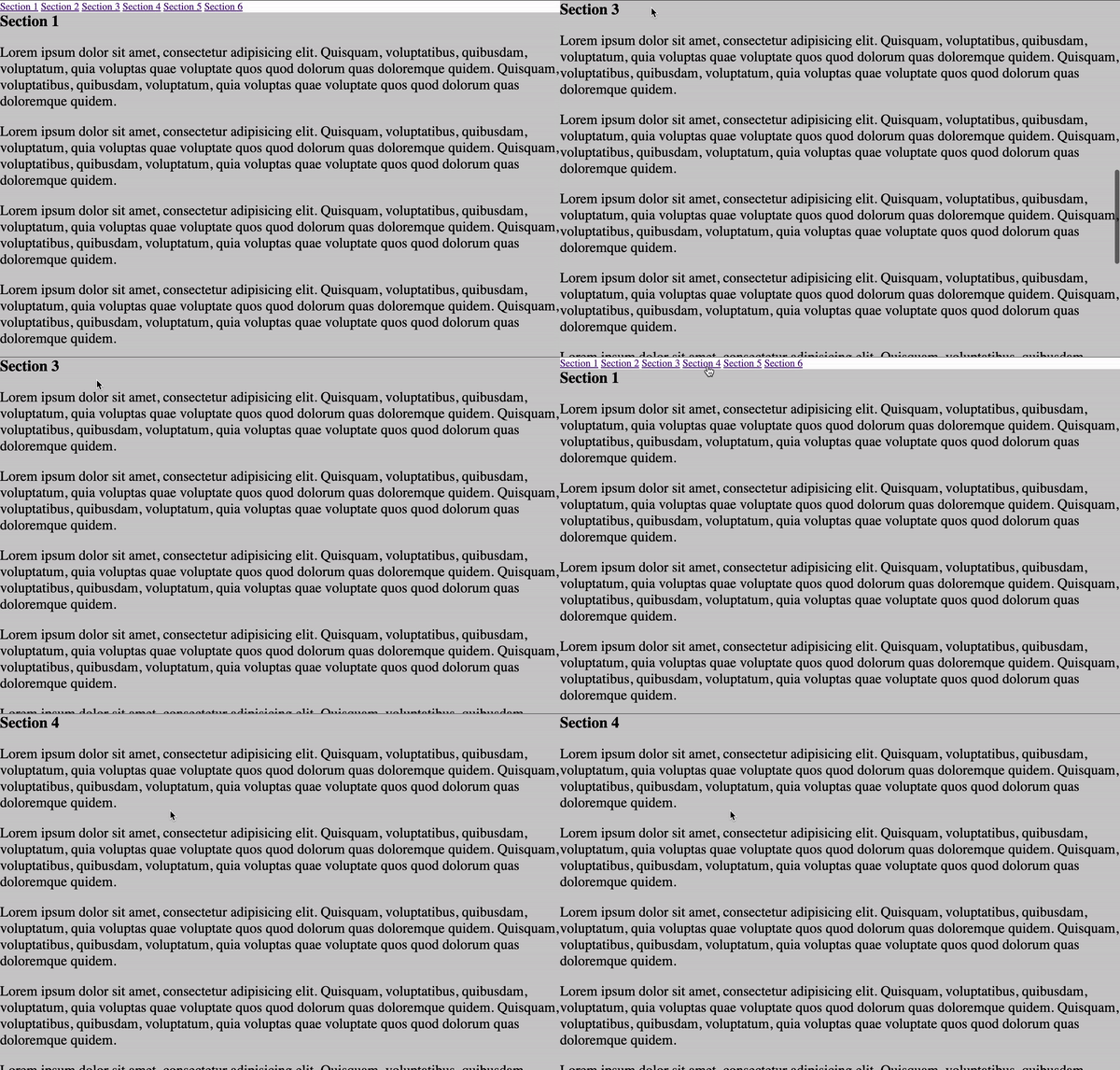
It’s useful for users when you have long pages like articles and rules.
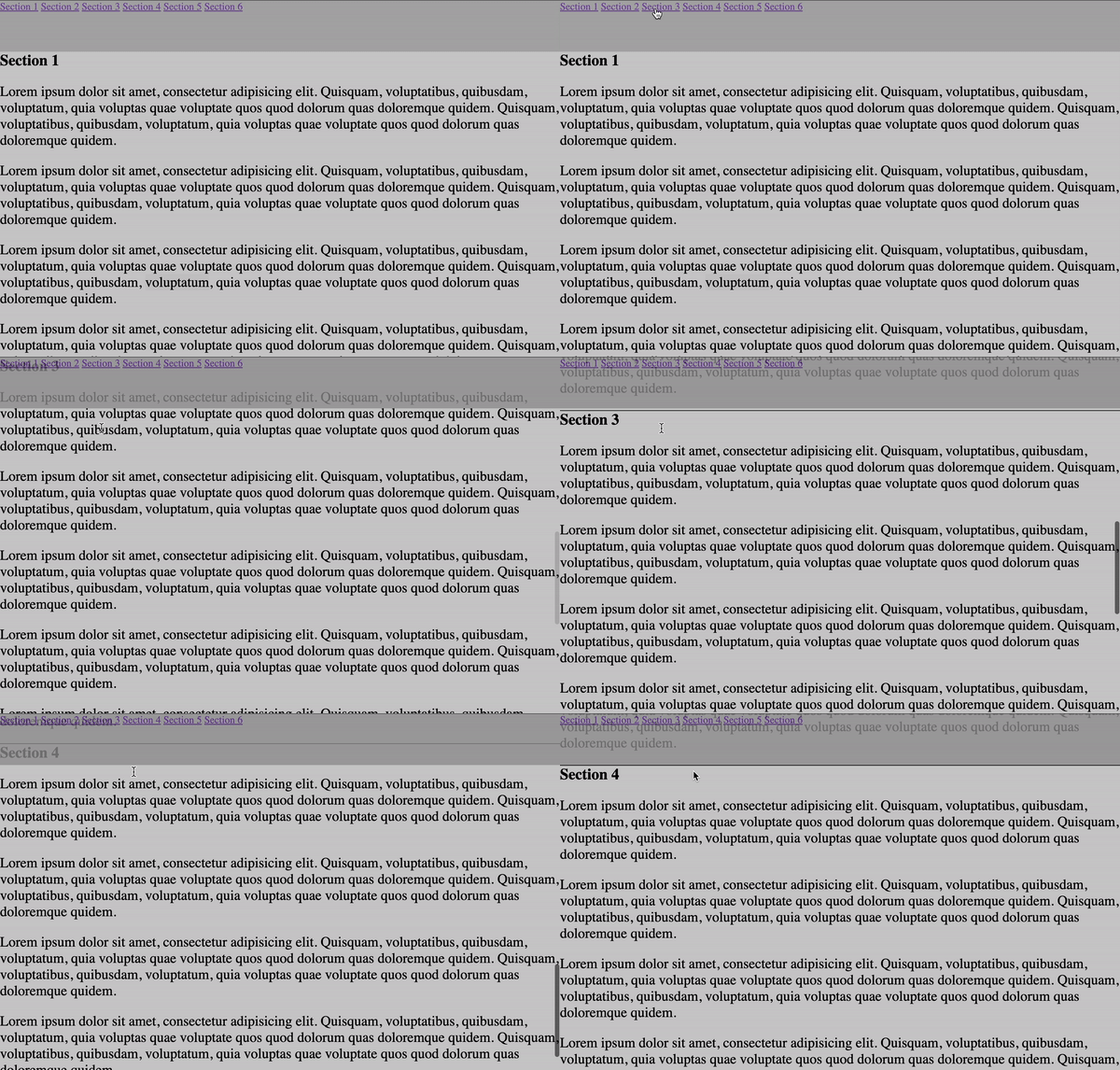
However, there are often fixed elements at the top a page, such as headers, which gets slightly misaligned after clicking on a link and scrolling.
For example, suppose you have the following header.
<style>
  header {
    position: fixed;
    top: 0;
    width: 100%;
    height: 80px;
    background-color: #989898;
    opacity: 0.8;
  }
</style>
<header style="">
  <a href="#section-1">......</a>
  <a href="#section-2">......</a>
  <a href="#section-3">......</a>
  ...
</header>
I intentionally made this header a little transparent. you can see that some of the content is hidden behind the header after the a-link is clicked on.
How To Solve With Just HTML and CSS
You can solve this problem by getting the height of the header with JavaScript when the a-link is clicked on, then subtracting the height of the header from the scroll position before scrolling. For this article, however, I want to show you a solution that uses only HTML and CSS. To be more specific, you can prepare another <div> a little above the <section> you want to reach and make the user scroll to that element.
Going back to the previous example, we will first create a div tag in each section. Then assign a class to the div tag, such as anchor-offset, and move the id that was originally assigned to the <section> tag to the newly created div tag.
<section>
  <div class="anchor-offset" id="section-1"></div>
  <h1>Section 1</h1>
  ...
</section>
Then use CSS to style the <section> tag and .anchor-offset.
/* use classes if you want to add only the elements that need to be anchored */
section {
  position: relative;
}

.anchor-offset {
  position: absolute;
  height: 80px;
  top: -80px;
  visibility: hidden;
}
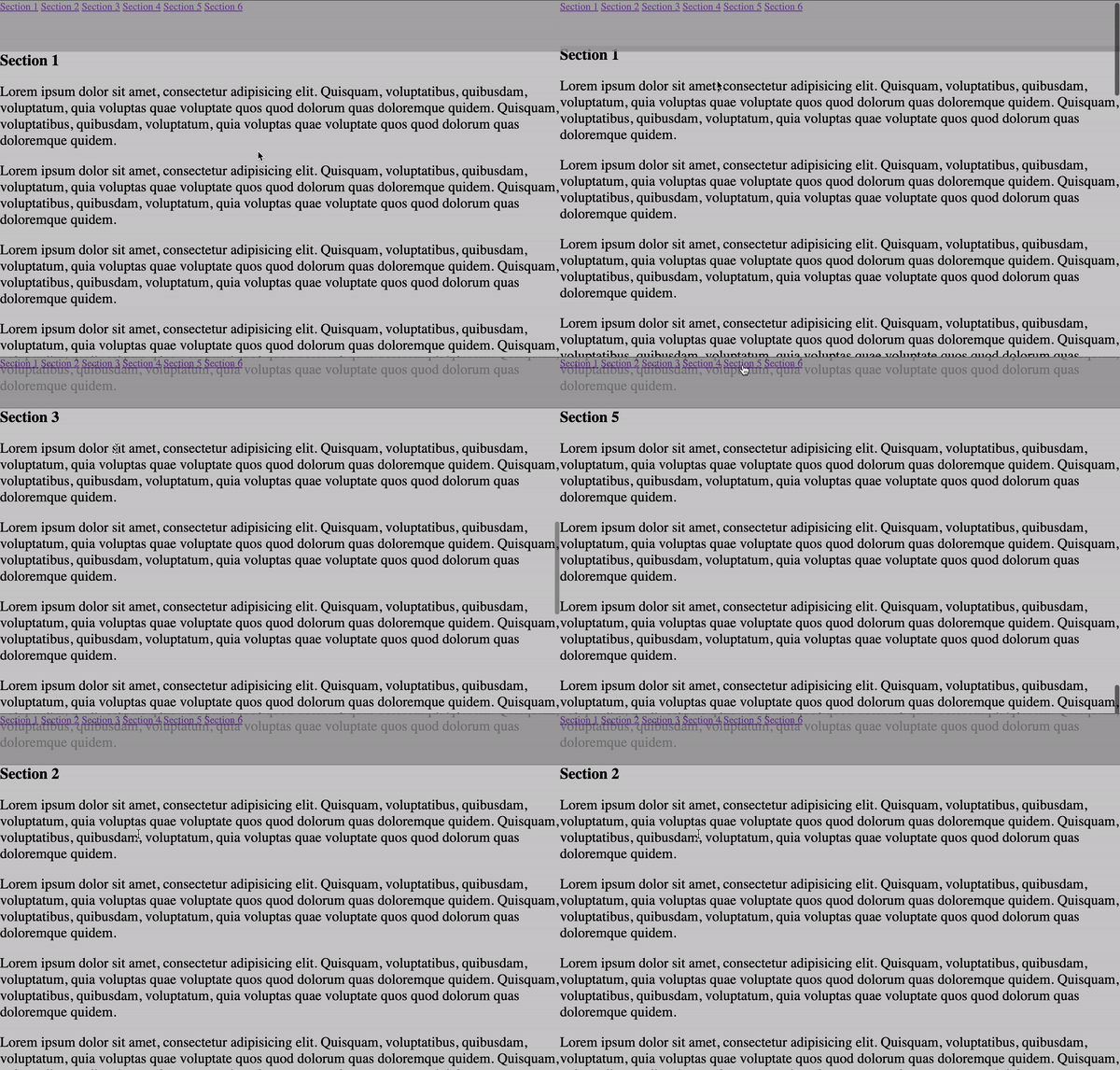
With the above settings, when the user clicks on the a-link, they will scroll to a little above the corresponding <section> position (80 px in our example), and the height of the header (80 px) will be offset.
How to write in Vue
Vue allows you to bind values to CSS. If you use this function to dynamically set the height and make it a component, it will be easier to maintain.
<template>
  <div :id="props.target" class="anchor-offset"></div>
</template>

<script setup>
const props = defineProps({
  target: String,
  offset: Number,
})
const height = computed(() => {
  return `${props.offset}px`
})
const top = computed(() => {
  return `-${props.offset}px`
})
</script>

<style scoped lang="scss">
.anchor-offset {
  position: absolute;
  height: v-bind('height');
  top: v-bind('top');
  visibility: hidden;
}
</style>
Summary
This is how you can adjust the scroll position to match fixed elements such as headers when the user scrolls to a specific part of the page with an <a> tag. Although there are many other solutions, I hope this one helps you!

関連記事 | Related Posts










We are hiring!
Follow Us



KINTOテクノロジーズの最新情報をSNSで発信中!イベント・テックブログ更新情報もお届けします。