
8 min read
UI/UX
Let's Use the Functions of Figma Variables! (For Beginners)


This summary was generated by AI. Please refer to the article for accurate details.
Read the summary
We solved the problem of making a shopping cart mock-up interactive by using Figma’s new variable functions. The team created a simple shopping cart with a count-up feature and a subtotal that updates in real time. This was possible because Figma now supports variables—like boxes that hold values—such as numbers, text, color, and boolean. To build it, they started with a coffee shop-style base design and added a button component with hover effects. They created a number variable called Kosu1 and set it to 1, meaning one product starts in the cart. Then they assigned that variable to a number display, so when the user clicks the plus or minus buttons, the number updates automatically. The count-up function works by using actions: when the plus button is clicked, Kosu1 increases by 1. For the minus button, they added a condition to prevent the number from going below zero. So if Kosu1 is 1, clicking minus makes it 0—but not less. This means the number stays safe and realistic. For the subtotal, they made a second variable called Shoukei and set it to 100, the price of one product. The formula uses multiplication: Shoukei = Kosu1 × 100. So when the count goes from 1 to 2, the subtotal jumps from ¥100 to ¥200. The preview shows this change instantly, making the mock-up feel real and responsive. This setup lets beginners build interactive UIs without coding. With just one product, the cart updates correctly using variables and simple math. The result is a working prototype that can be expanded—like adding free shipping when two items are added—showing how powerful Figma’s new variable tools really are.
Introduction
Hello! I am Aoshima from KINTO Technologies' Project Promotion Group. New variable functions have been added to Figma. Even though they are very convenient, I don't think there are many tutorials on them written in Japanese, so although it may be presumptuous, I am writing this article with the hope that it will be useful even for beginners.
Let's Make a Shopping Cart Mock-Up Using the Functions of Figma Variables!
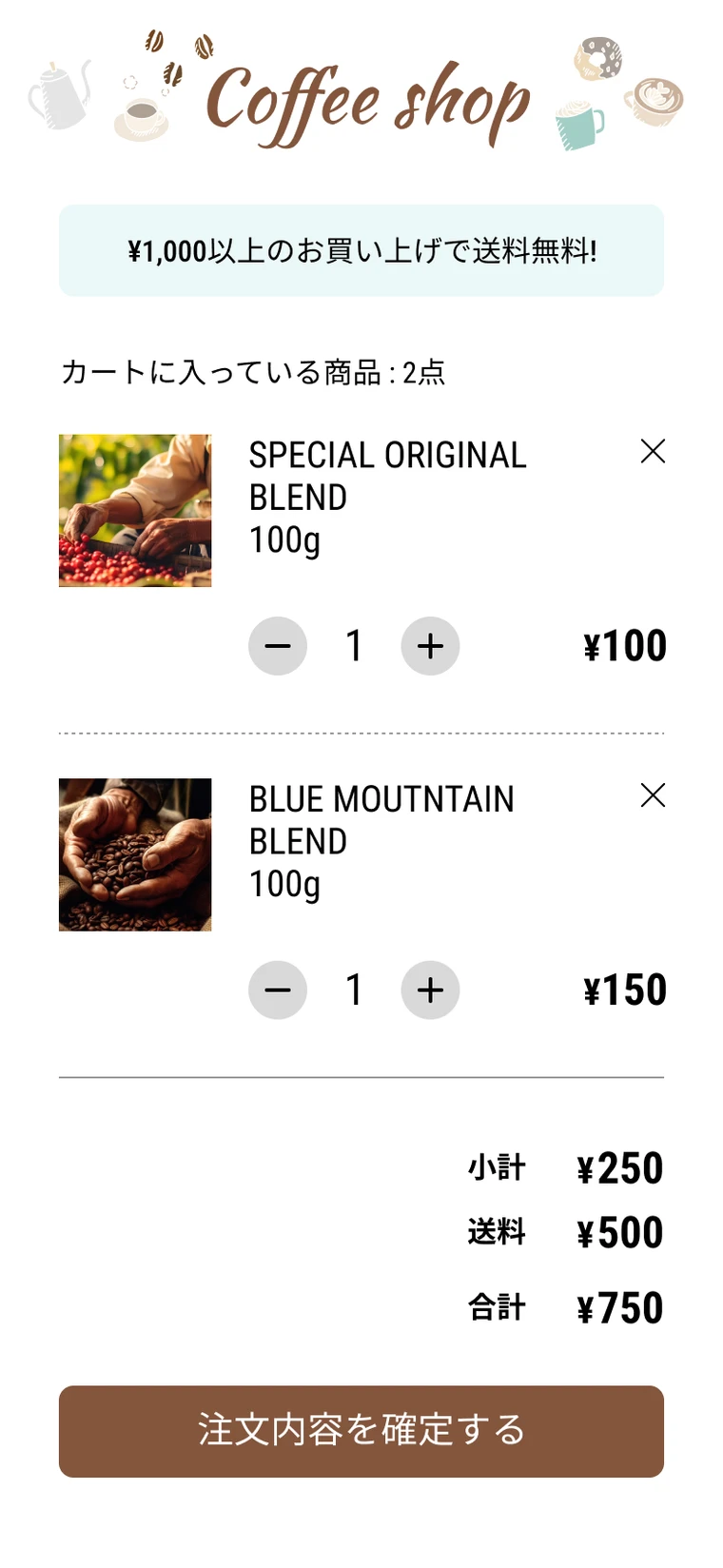 Completed Shopping Cart Completed Shopping Cart |
I will explain in two parts how to create an interactive shopping cart function using Figma variables
I want to start by explaining the variables in Part 1, and explain the count-up function that allows you to increase or decrease the number of products, and the ability to calculate the subtotal according to the number of products.
In part 2, I will write about using functions when there are two products in the cart so you can calculate the subtotal, change free shipping settings, change total amount settings, and change settings so the wording is different when the shipping is free.
[Part 1]
- What Are Variables
- Part Creation
- First Is the Count-Up Function
- How To Create and Assign Variables
- Creating a Count-Up Function
- Subtotal Settings
[Part 2]
- We Try Increasing the Number of Products to Two
- Subtotal Settings
- Free Shipping Settings
- Total Settings
- Changing the Wording for Free Shipping
- End
[Part 1]
What Are Variables
Variables are a new feature added to Figma in June 2023. Variables can be assigned to objects. Variables are called "hensuu" in Japanese. Variables are often described as a box that temporarily holds various information and values. Figma provides four types of variables (number, color, text, and boolean values), and these four types of information and values can be assigned to variables. However, since it seems that it is not possible to cross types, it seems that it is not possible to change a number variable to a text one partway through.
Part Creation
I will now start creating. I want to create these two functions.
Count-up function: The number of products increases when the plus button is pressed, and decreases when the minus button is pressed
Subtotal settings: The total amount changes according to the number of products
First, I will teach you how to create parts and create and assign variables in order to make these functions.
Create Base Parts
To create the count-up function, I have created a design that resembles a coffee shop as the base of the shopping cart, and made it so that there are coffee beans in the cart.
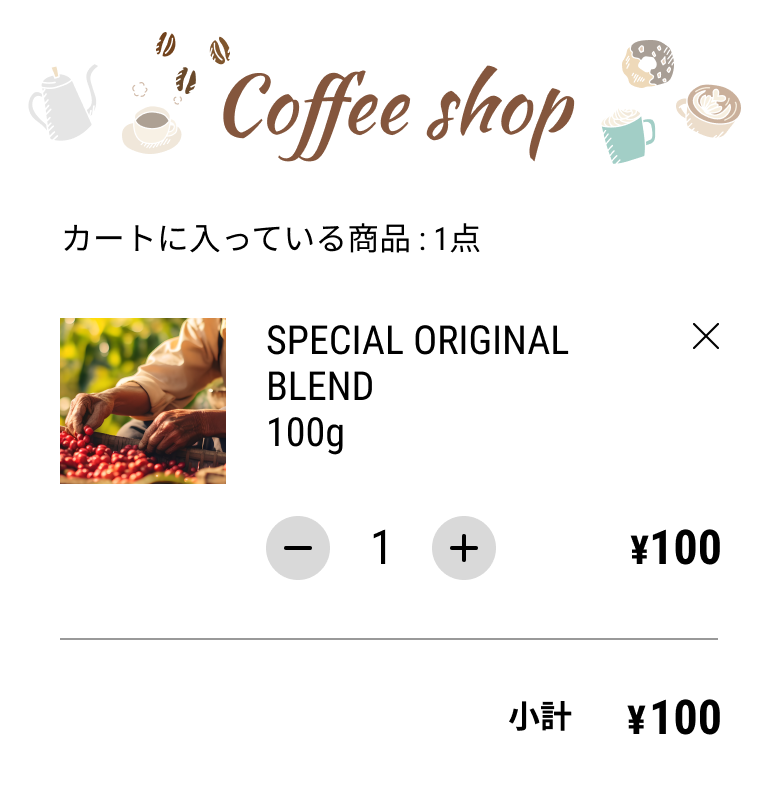 There is 1 base part product in the cart There is 1 base part product in the cart |
Creating Button Parts
Next, we want to include an action that changes the color of the button when the mouse hovers over it, so we will make a button component and create a variant. In the sample, its default state is light gray, and the mouseover state is dark gray.
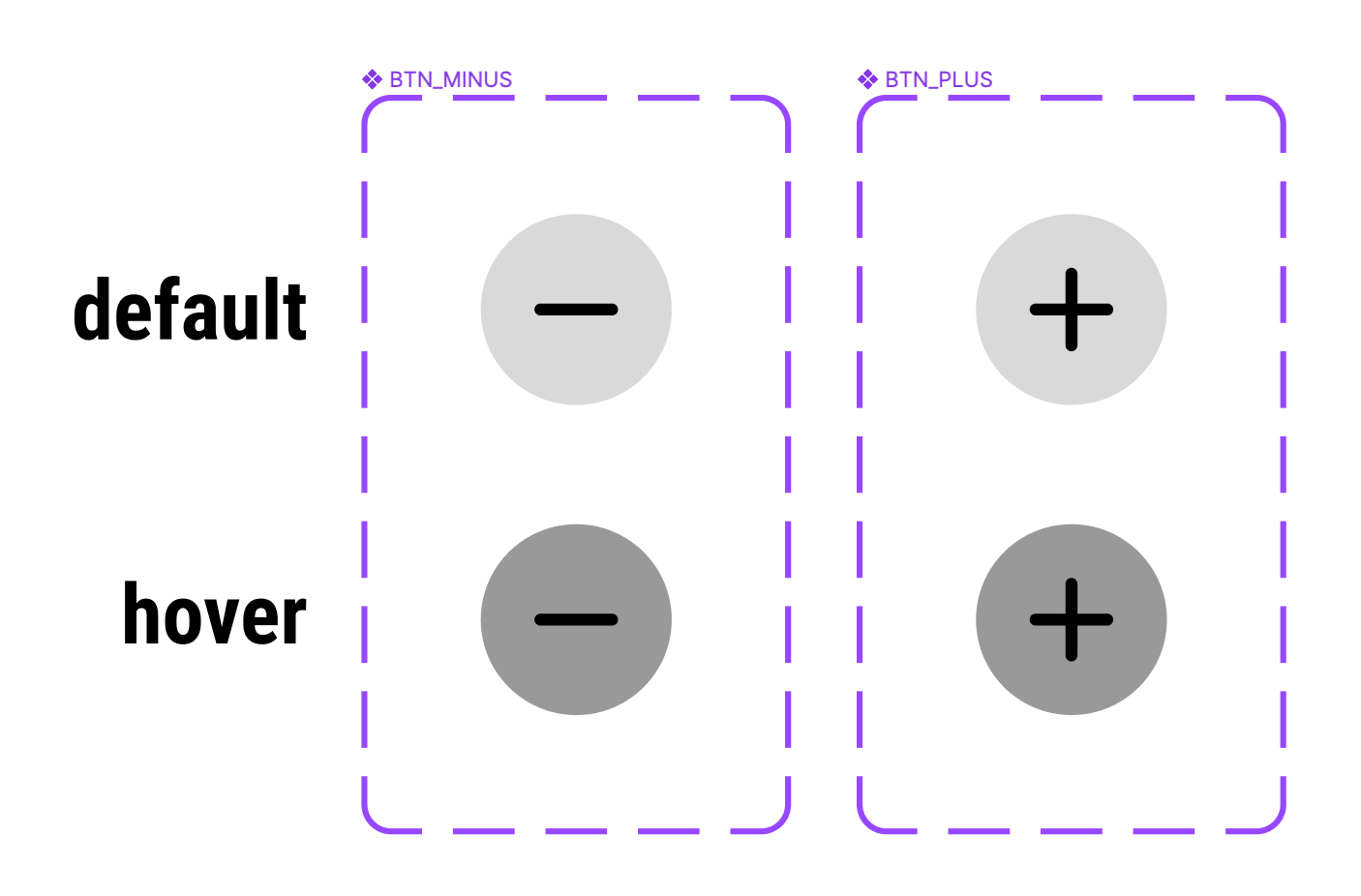 Create button variant Create button variant |
How to Create and Assign Variables
Now that we have the necessary parts, I will explain how to create and assign variables. Variables are primarily assigned to objects that you want to change (by clicking or doing other actions). For example, you want to change the number of products when you press the plus or minus button, so you assign a variable to the number of items.
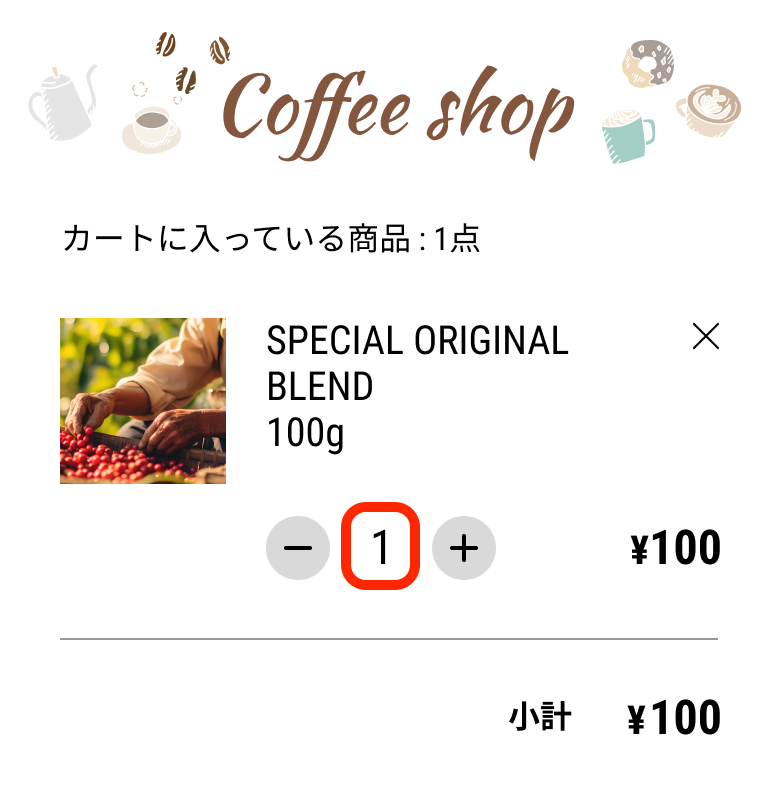 * Assign a variable to the number of items in the red rectangle* * Assign a variable to the number of items in the red rectangle* |
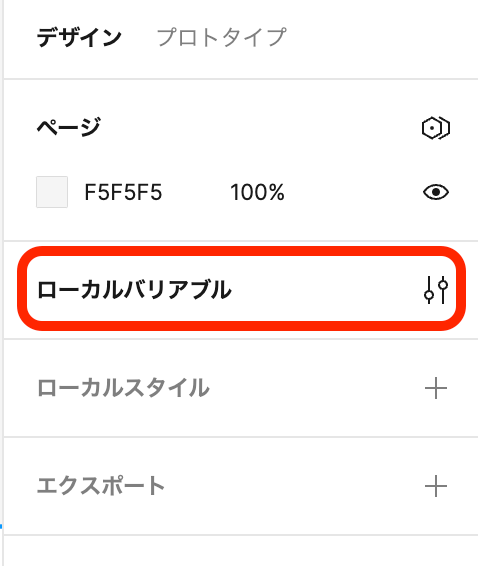
To create a variable, click Local Variables in the right column to open the window, then click the Create Variable button in the bottom left of the window.
 |
 |
Since we want to assign to a number, choose "number" as the type and named it "Kosu1." Since we assume that there is already one product in the cart, put 1 in the Mode 1 field. We have now created a variable. Next, we will assign this variable to an object. Select the number 1 on the design, and click the octagonal icon (above the three-dot leader) in the text information field in the right column. Select Kosu1 from the list of variables. We have now assigned a variable.
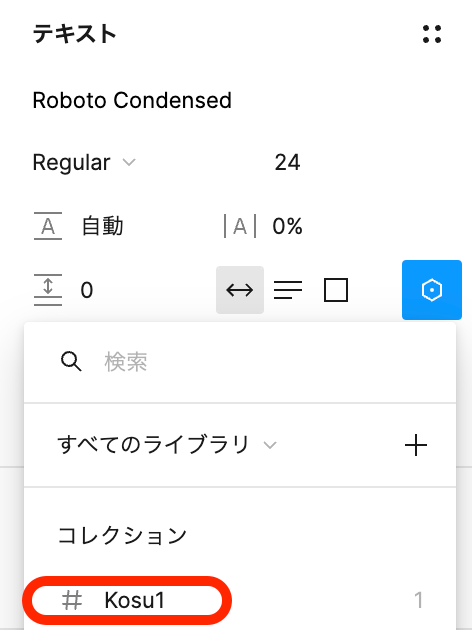 A list of variables that can be assigned appears A list of variables that can be assigned appears |
We assign the variable Kosu1 to the "1" between the plus and minus buttons and give it the value 1. If you change this value to 2, the number on the object will also change to 2.
Creating a Count-Up Function
Now that we have a set of parts and variables, I will create a function that increases the number of products when the plus button is pressed. To do this, you need to assign an action to the plus button. Selecting the plus button and click "Prototype" at the top of the right column to change the mode. Then click the + sign to the right of "Interaction" and enable assigning mouse actions.
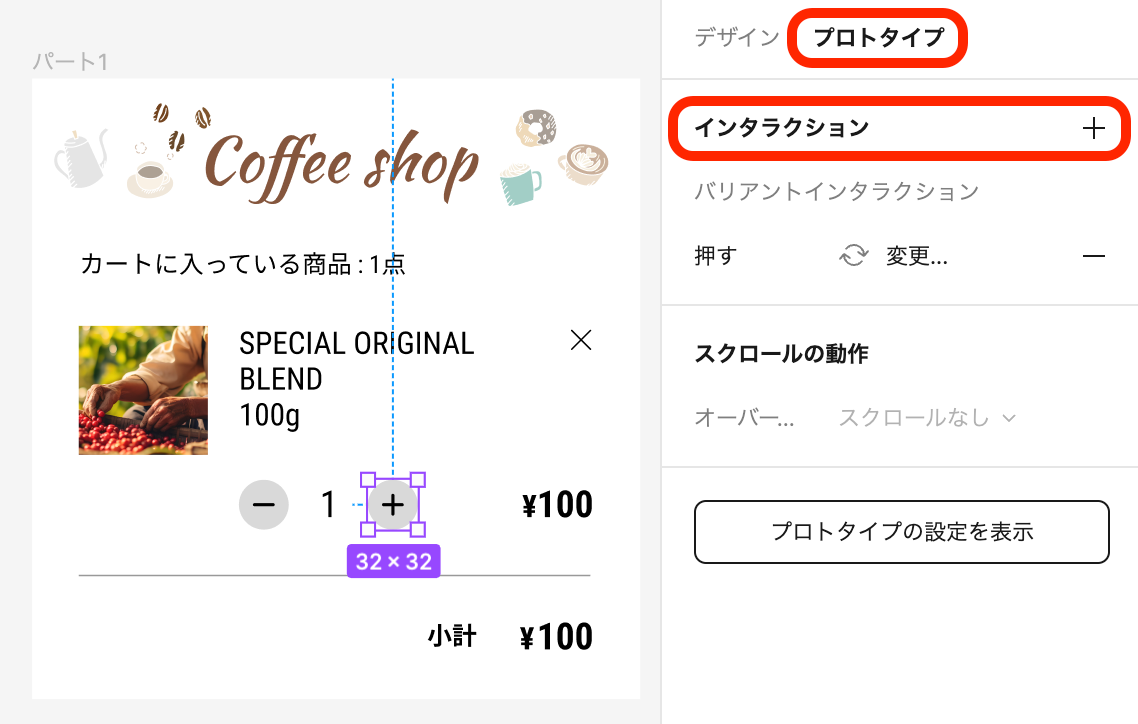 *Select a variable and enter a formula. * *Select a variable and enter a formula. * |
As for the type of action, I want to increase the number when I click the plus button, so I can keep the default settings for "click." Then select "Set Variable" and do the following.
- Select the variable you want to change when the object is clicked
- Enter the formula for what happens when the object is clicked
When you are done, it should look like the figure.
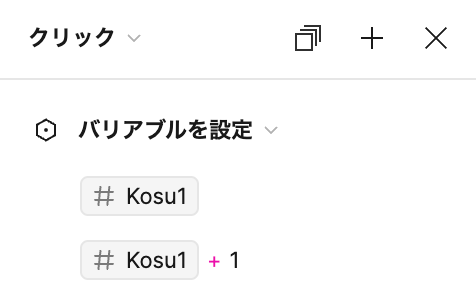 *Select the variable and fill in the formula. * *Select the variable and fill in the formula. * |
This formula makes it so that when the plus button is clicked, Kosu1 becomes Kosu1+1. If the plus button is clicked while Kosu1 is 1, it will become 2. If you see a preview, you can see that each time you click the plus button, the number increases by one. Similarly, we will assign an action to the minus button, but we must be careful of one thing. Unlike the plus button, if you do not set any restrictions (conditions), the number will be negative. In this case, you need to set a conditional action (if statement) as shown in the figure below.
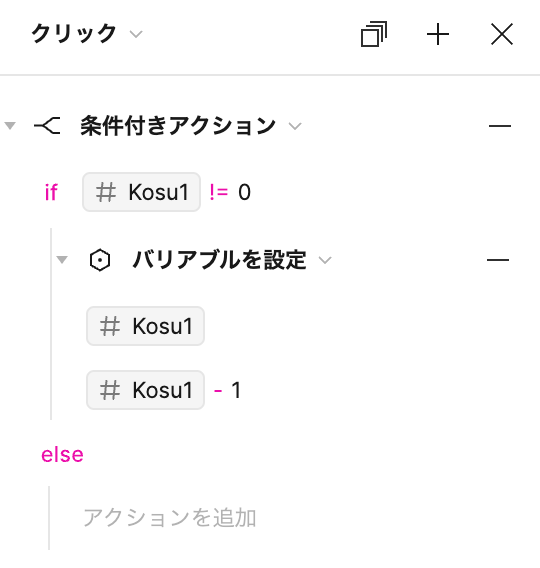 |
This formula makes it so that if Kosu1 is not 0, then Kosu1 becomes Kosu1-1. For example, if you click the minus button while Kosu1 is 1, it will be 0. However, if you click the minus button while Kosu1 is 0, there will be no action, so it will remain 0. If you see a preview, you can see that the number increases when you click the plus button, and the number decreases when you click the minus button, but it does not go below zero.
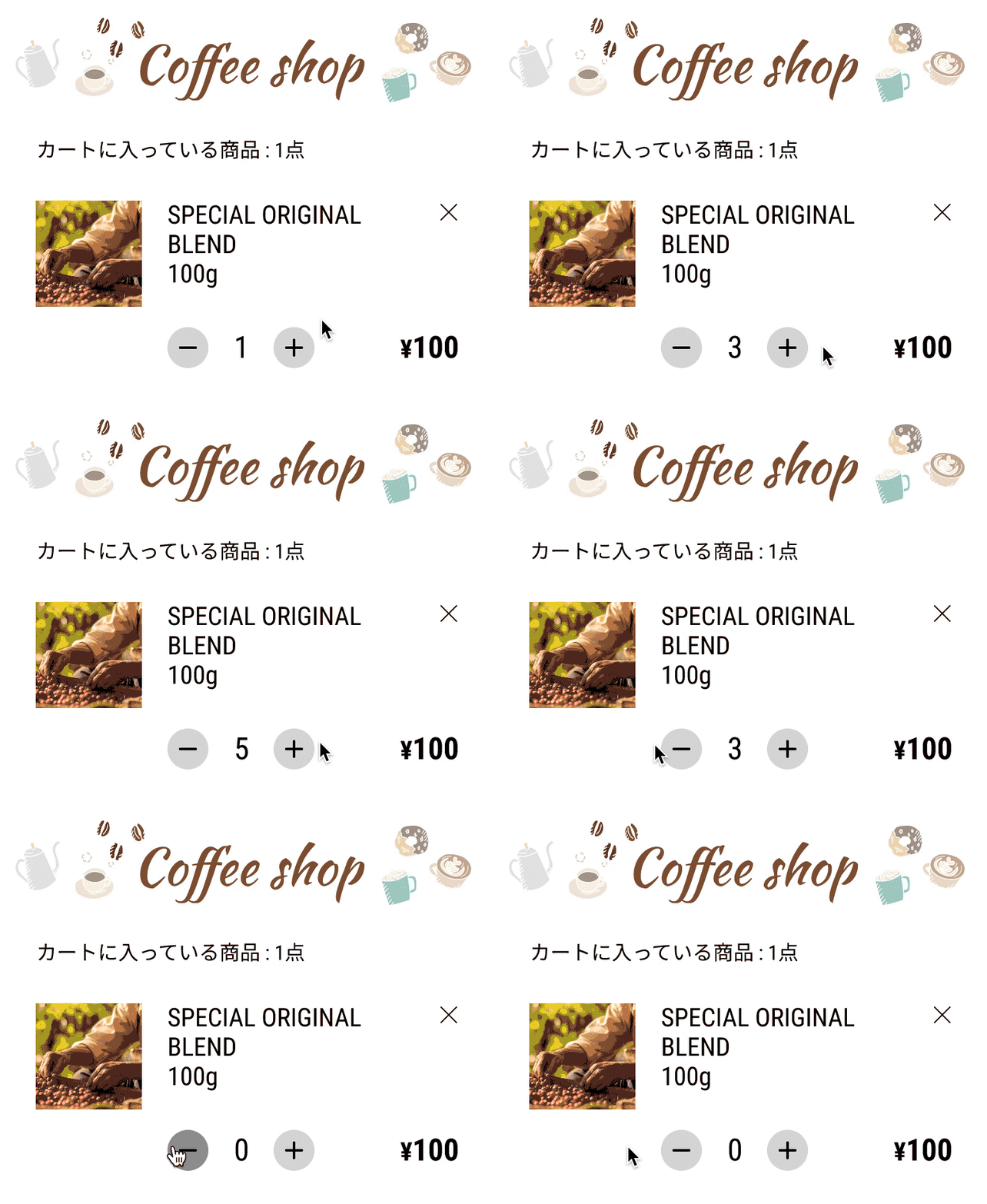 How the count-up function works How the count-up function works |
The count-up function is now complete.
Subtotal Settings
Finally, I will set up the subtotal. In Part 1, there is only one product, so we will treat the total amount as a subtotal.
Create and Assign a Variable
The subtotal is also an object that changes according to the number of item, so you need to set a variables I made the variable the same way as before and named it Shoukei. Since we assume that the shopping cart starts with one product, the subtotal will be ¥100, and the value will be 100. We assign the variable to a number the same way as before.
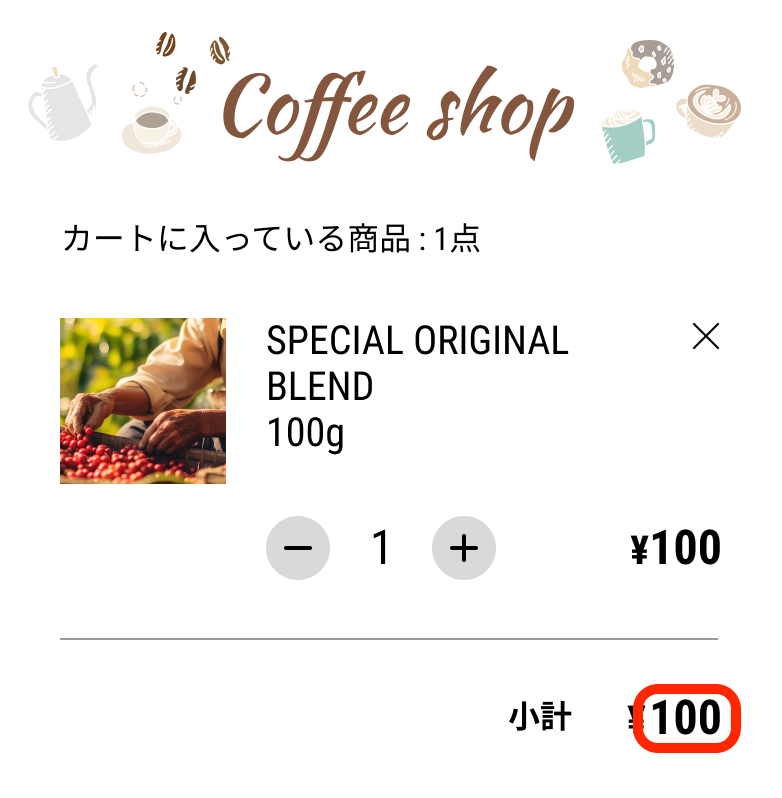 Assign a variable to the amount in the red rectangle Assign a variable to the amount in the red rectangle |
Give an Action to the Button
When deriving the subtotal amount, you can also increase or decrease the price of the product by pressing the plus or minus buttons, just like with the quantity. You can also use the multiplication operator to calculate quantity x price. You can also use the same formula for both the plus and minus buttons, which makes it a little easier. When you are done, it should look like the figure.
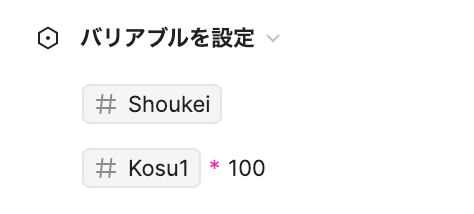 |
This formula makes it so that Shoukei is Kosu1 x 100, so if Kosu1 is 1, the subtotal is 1x100, which is $100. If you see a preview, you can see that the number of products increases or decreases when you click the plus or minus button, and the price of the subtotal changes accordingly.
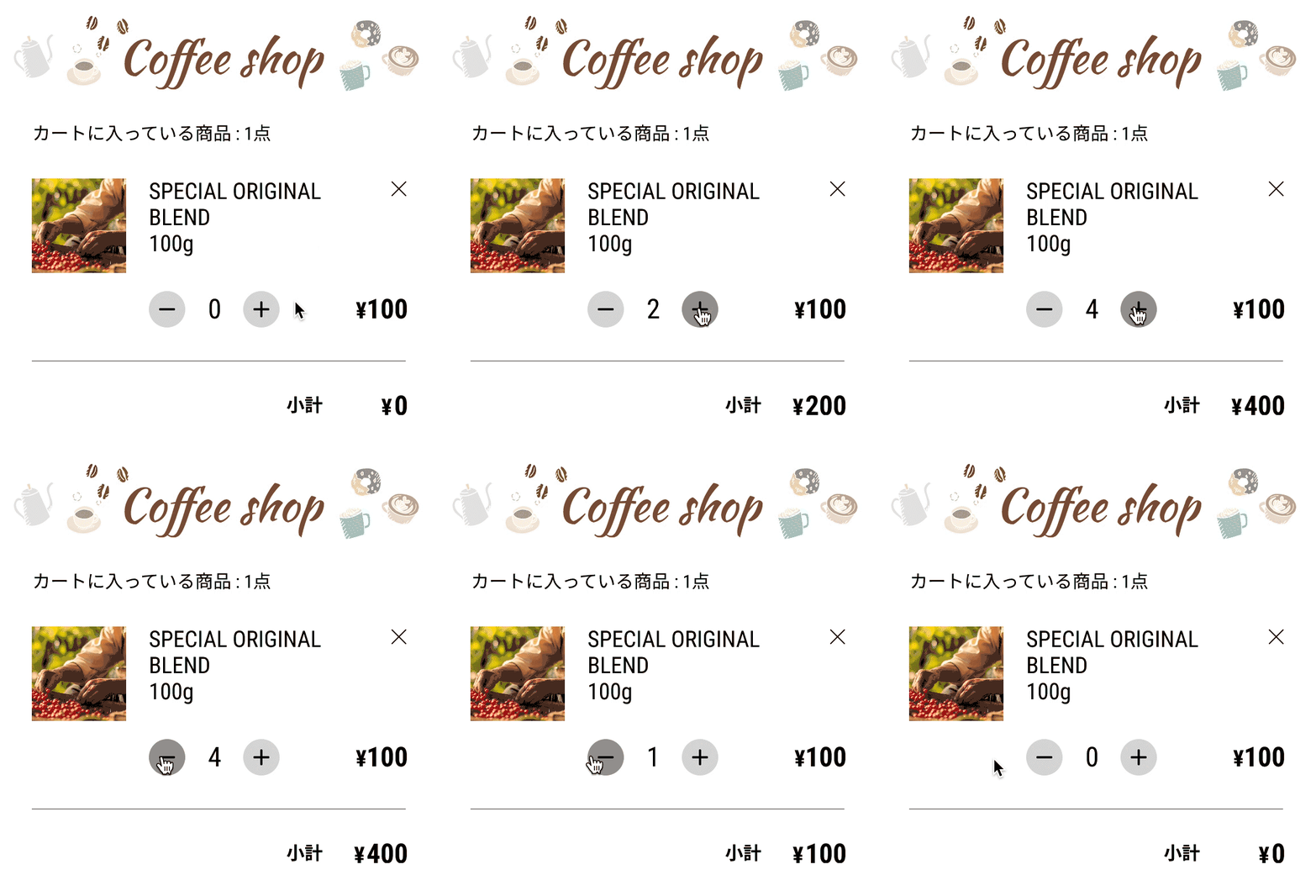 The subtotal changes The subtotal changes |
Now the subtotal settings are complete. You can make a mock-up of a like button or simple cart function with just the information in Part 1, and I think it is useful for various applications. This concludes Part 1. In Part 2, we will put all this to practical use. I will explain how to make shipping free if there are two products and the amount exceeds a certain number. I hope this was helpful.

関連記事 | Related Posts






We are hiring!
福岡拠点 オープンポジション(エンジニア)
やっていること国内サービスでは、トヨタのクルマのサブスクリプションサービスである『 KINTO 』を中心に、移動のよろこびを提供する『 モビリティーマーケット 』、MaaSサービスの『 my route(マイルート) 』など、トヨタグループが展開する各種サービスの開発・運営を担っています。
【PdM】契約管理システム開発G/東京
契約管理システム開発グループについて契約管理システム開発グループは、クルマのサブスクリプションサービス『KINTO』(新車・中古車)を中心とした国内向けサービスにおいて、申込から契約満了(中途解約を含む)までの社内業務プロセスのシステム化と、契約状態の管理を担っています。
Follow Us



KINTOテクノロジーズの最新情報をSNSで発信中!イベント・テックブログ更新情報もお届けします。