
7 min read
AI
Automating Tasks with Google Sheets and MCP – Get It Done with Just One Line!

This summary was generated by AI. Please refer to the article for accurate details.
Read the summary
With just one line of natural language, you can now create and fill a Google Sheet—no coding needed. This is possible thanks to MCP, a tool that lets AI control real-world apps like Google Sheets. The process started when an Android developer noticed how tedious manual data entry was, and decided to automate it using AI. MCP acts like an interpreter that turns plain language into actions. Instead of clicking through menus to add data, the AI now opens a sheet, selects a cell, and enters content automatically. In one test, the AI created a new spreadsheet named “Today’s Google News” and organized top news articles into three columns: title, summary, and URL. That’s all done in one command. The setup took about 15 minutes and required only a Google account, a code editor like Cursor, and a few steps in Google Cloud. A service account was created with Editor permissions, and the folder ID was shared with it. The AI then connects to Google Sheets via the Google Sheets API, using a local server running on a Mac with uv and uvx tools. After setup, the developer tested the system with a simple command. The AI analyzed the request, converted it into API calls, and created the sheet in seconds. The full process—from command to result—happened in under 10 seconds. The result was a fully populated spreadsheet with accurate data, showing how fast and reliable this automation can be. This proves that AI-driven automation isn’t just a future idea—it’s already working. With small, safe starts, teams can save hours of repetitive work. The key takeaway? One natural language command can now handle complex tasks. And it’s accessible to anyone with a basic setup.
Introduction
Hi, my name is Jongseok and I'm an Android app developer at KINTO Technologies.
One day, I was sorting through documents and transferring content into Google Sheets when it suddenly struck me.
"This is way too tedious."
Typing the same kind of content over and over again, adjusting the cell formatting...
it's not difficult, but I wondered if this is really something a human being should be doing. That thought stuck with me.
That's when I started looking into whether I could automate this process using the AI tools I've been seeing lately.
And what I came across was MCP (Model Context Protocol).
After trying out a few different tools,
I found that I could actually control Google Sheets with just a single line of natural language. Honestly, it was kind of mind-blowing.
What is MCP?
MCP stands for Model Context Protocol. The name may sound a bit technical, but the concept is actually very intuitive.
Simply put, MCP is like an "interpretation coordinators" that allows AI to freely operate real-world tools and services. In this article, I'll focus on examples of integration with Google services.
To put it more simply, services we use every day, such as Gmail, Google Drive, and Google Sheets, are operated by people clicking on them. MCP enables AI to handle those tasks for you.
For example,
let's say you want to record something in Google Sheets. Normally, you would:
- Open the sheet
- Click on a cell
- Enter your data
With MCP, the AI can handle all of that automatically.
Next, let's take a look at an actual demo:
https://www.kinto-technologies.com/products/ Using the following web page as a reference, create a new Google Spreadsheet and organize the products and services listed.
The video below shows what happens when MCP processes a request like above.
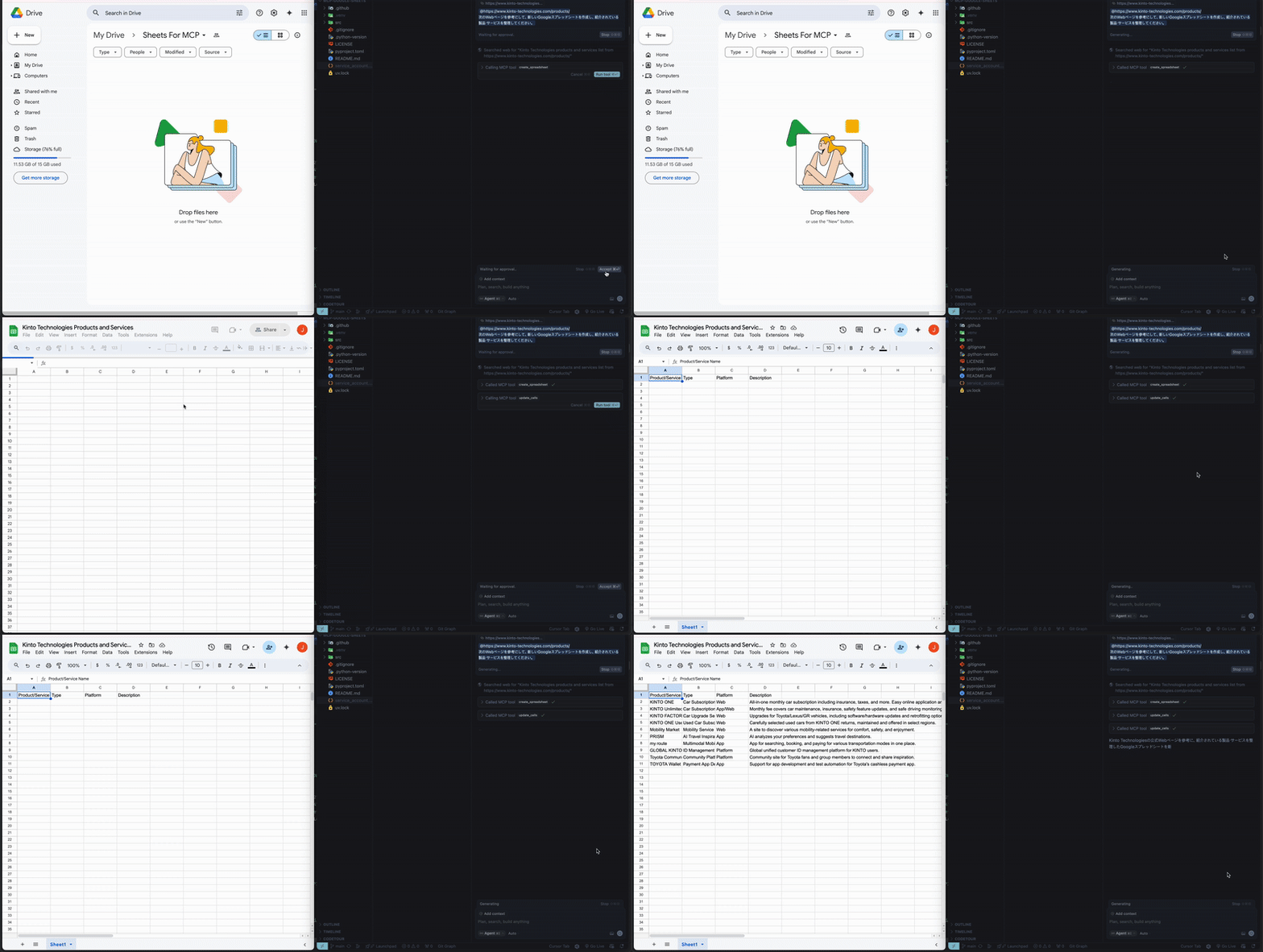
With just one command like this, the AI calls the Google Sheets API and automatically fills in the data into the sheet. Organizing data became incredibly easy.
Is MCP Trending Right Now?
Being technically possible doesn't always mean people are actually interested in it. So, I checked Google Trends to see how much attention the term MCP is getting.
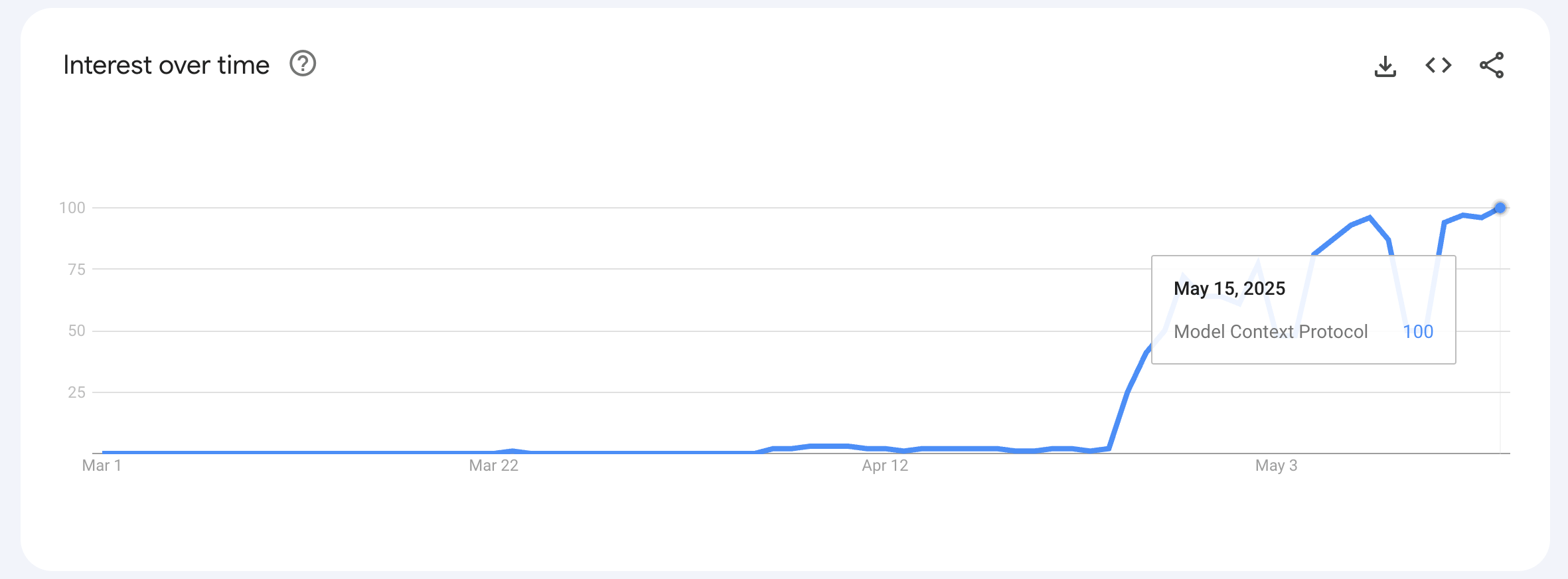
Looking at the data from March to May 2025, there's a clear spike in search volume especially from mid-April.
This suggests that interest in MCP has moved beyond curiosity. Not only developers but also general users are actually starting to use MCP. I guess I jumped on that wave, too.
So, if you want to try out MCP, what are the options?
To make use of MCP, you need an environment where natural language commands can be received and executed.
There are several AI agents that can work with MCP, such as Claude (Anthropic), but the one I chose this time was Cursor, a code editor with built-in AI features.
What is Cursor?
Put simply, Cursor is a code editor with built-in AI features. If you write a code request in natural language, the AI will automatically offer suggestions, edits, and explanations.
It also makes writing MCP commands a lot smoother.
If you're curious and want to learn more about Cursor, I recommend checking out their official website and blog. https://www.cursor.sh
Now, Let's Get Started Together
To automate tasks with MCP and Google Sheets, there are a few things you need to set up first.
But don't worry, no complicated knowledge is required. We'll go step by step.
Preparation
Before getting started with automation, make sure you've got the following:
- Install an editor that supports MCP (we'll be using Cursor this time)
- A Google account
- Google services you want to automate (Drive, Sheets, etc.)
- MCP Server(https://github.com/xing5/mcp-google-sheets) ←This is what we will use in this article.
- A simple natural language command you want to try
Google Cloud Platform (GCP) Setup
First, we'll configure GCP to use the Google Sheets API.
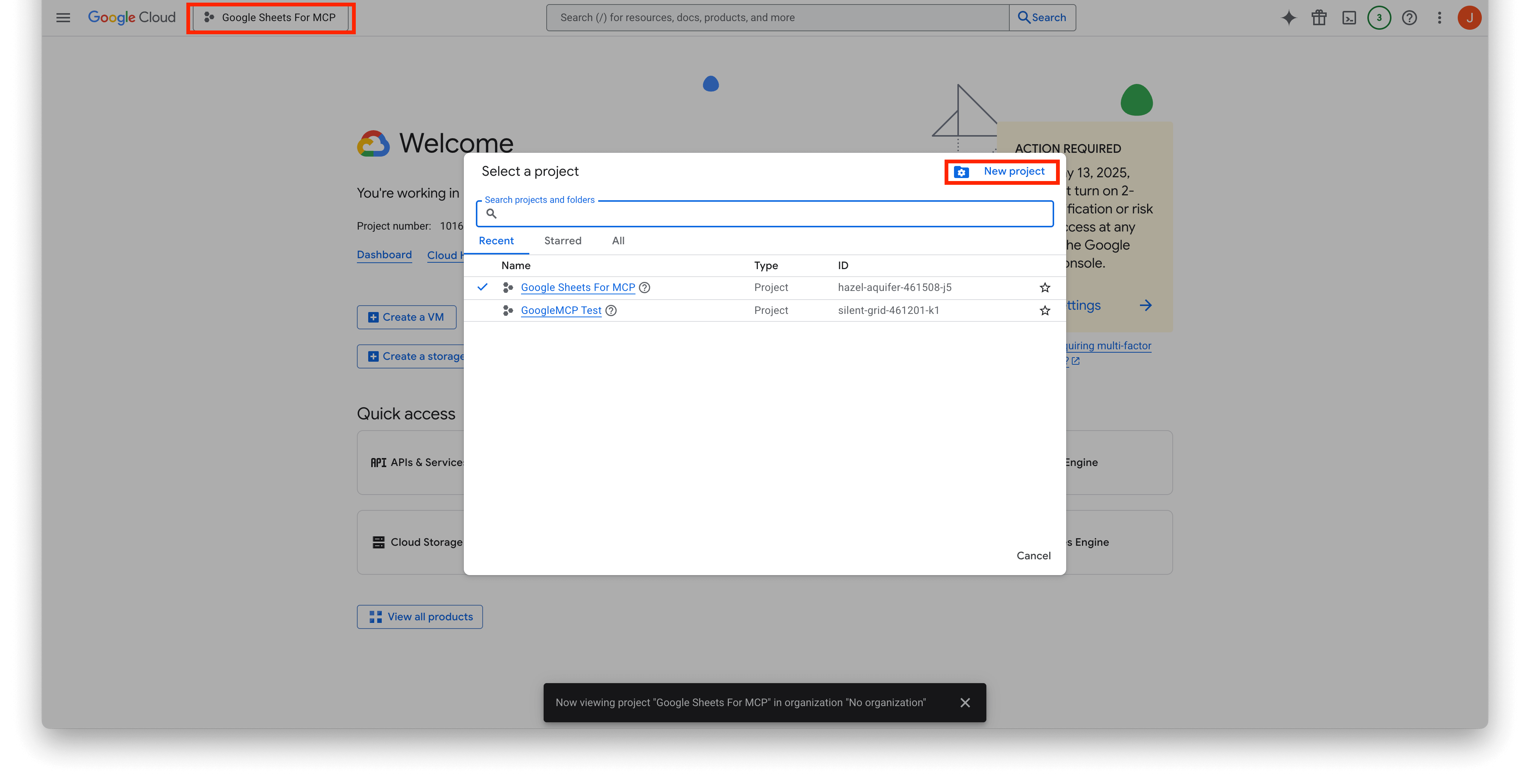
1-1. Create a project
Go to the GCP Console and create a new project.
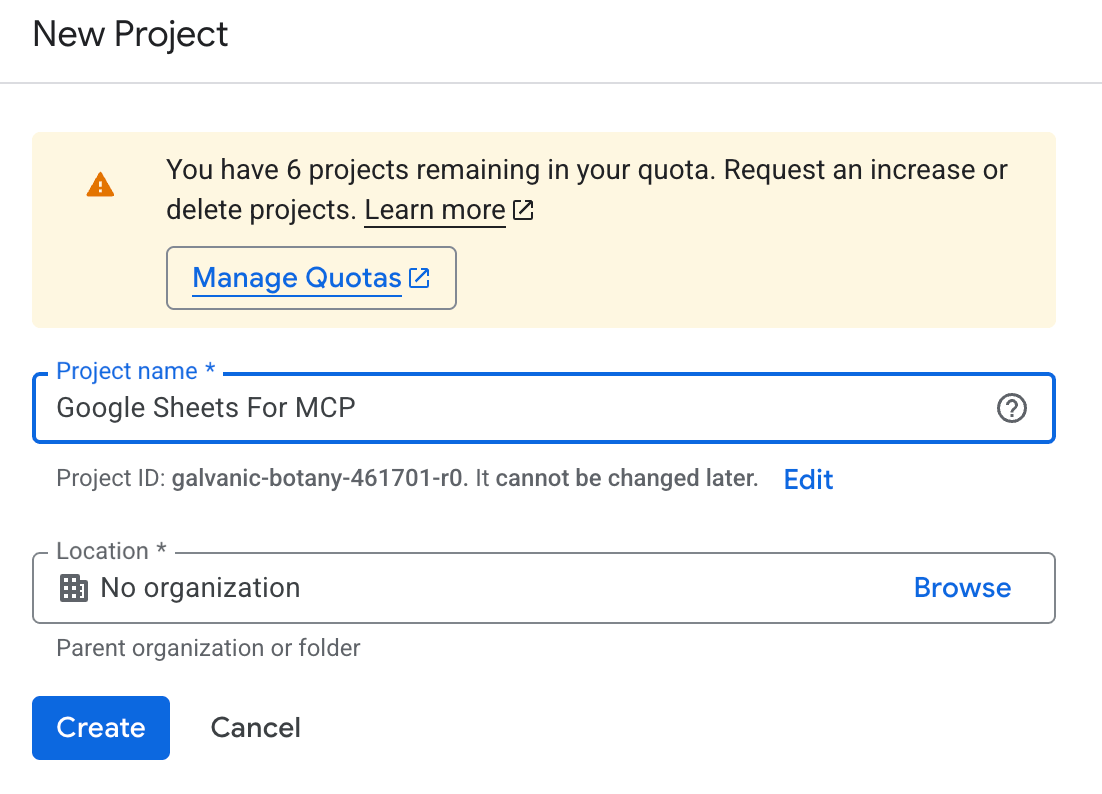
1-2-1. Create a service account
To let the AI access Google Sheets, create a Service Account.
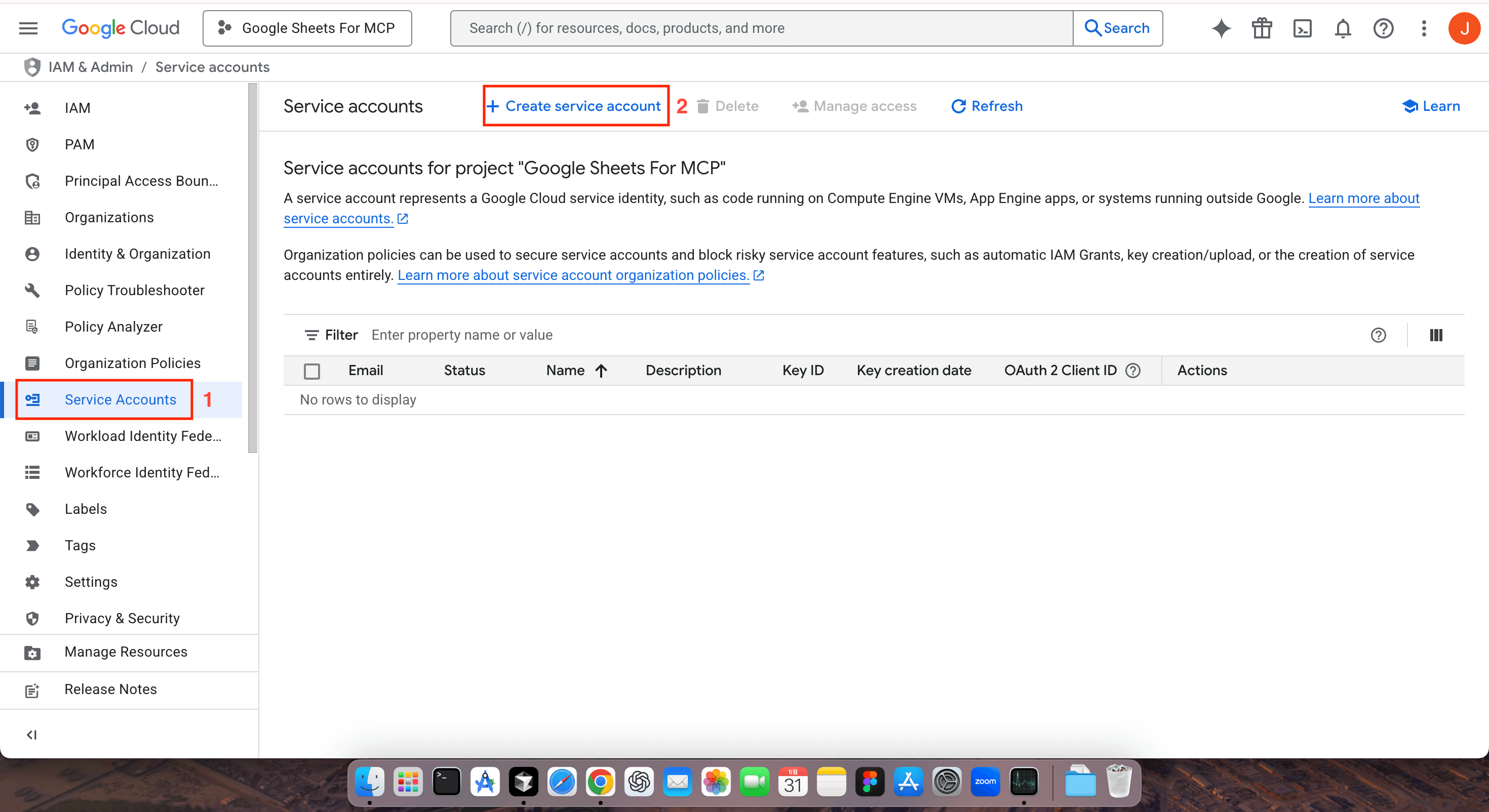
Click + Create service account under Service accounts.
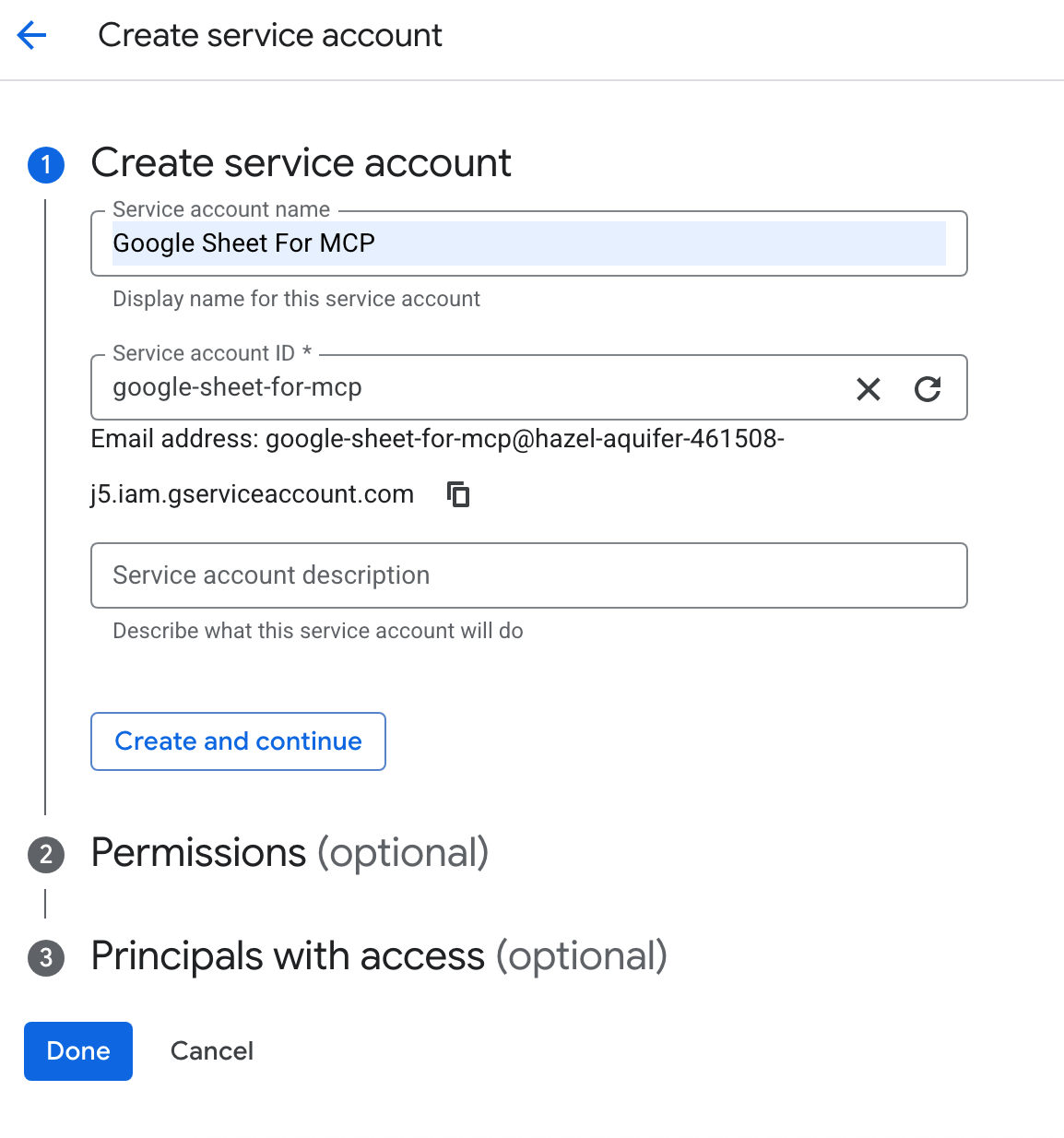
Enter the Service account name and click Done.
1-2-2. Add permissions
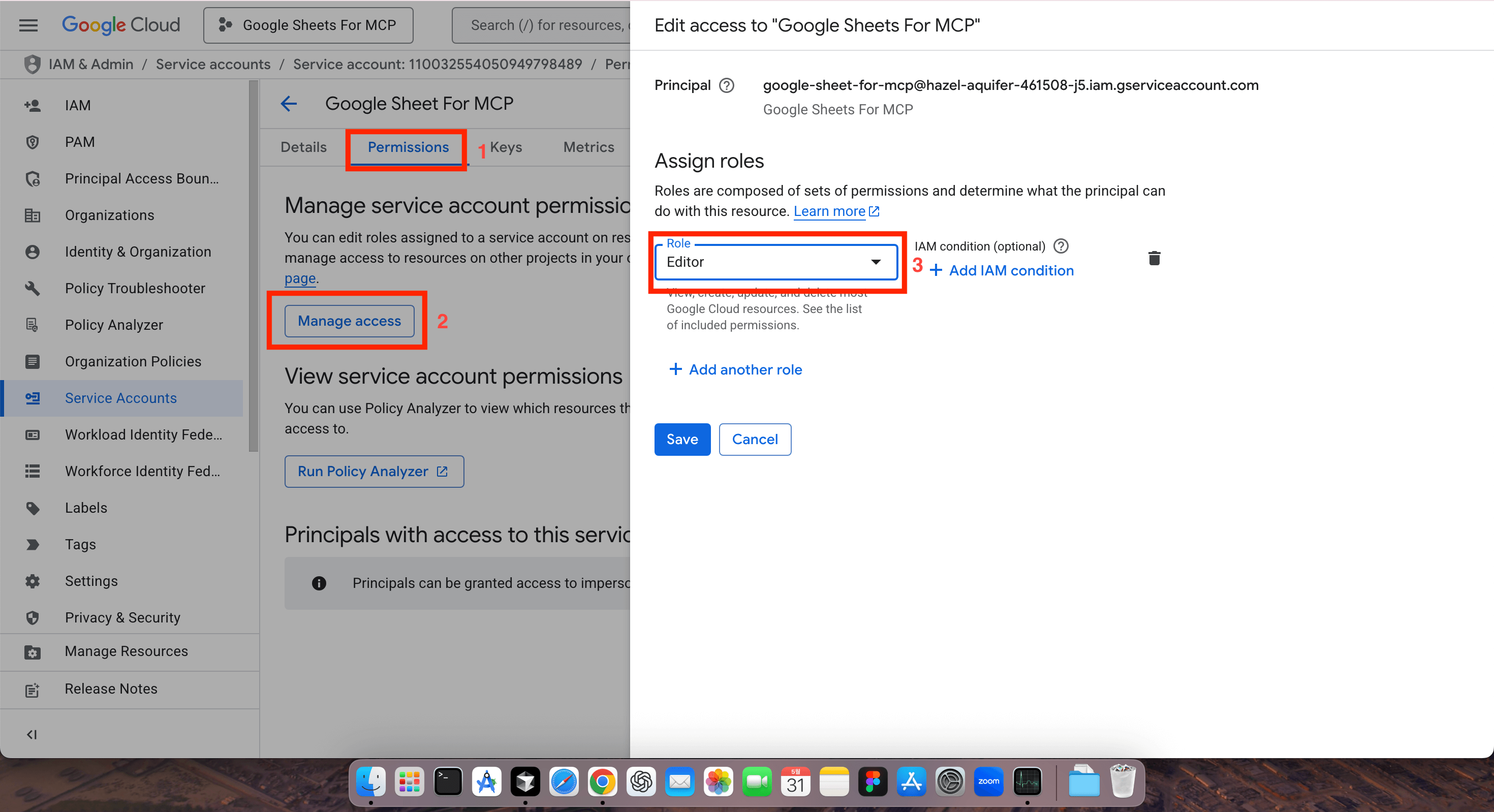
Go to Permissions -> Manage access -> Role, and set it to Editor, then click Save.
1-2-3. Add Keys
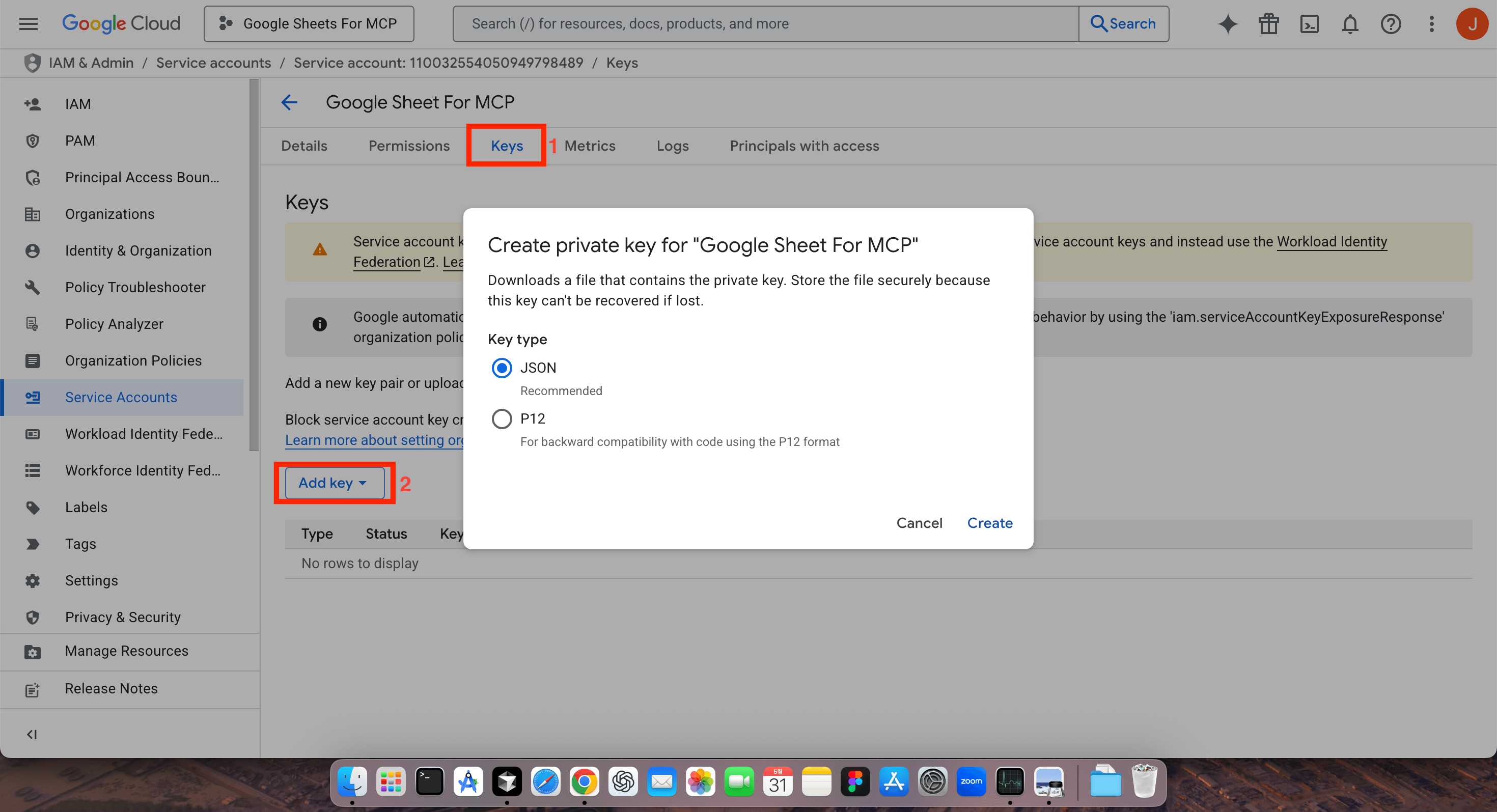
Go to Keys -> click Add key, select JSON and click Create. Then the authentication file will be downloaded.
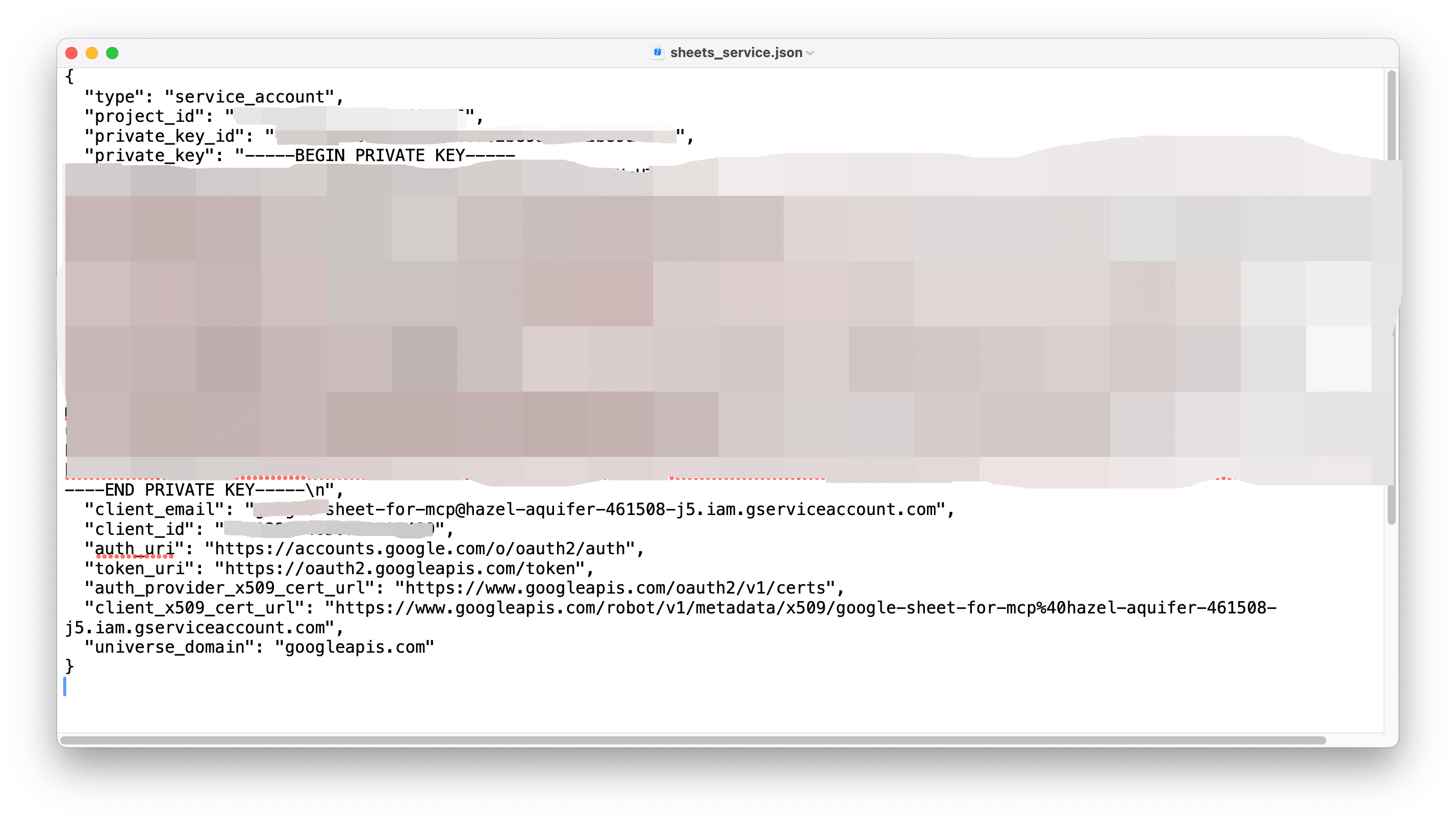 The contents of the file will look something like this. That's it. You've successfully created your service account. We will use this file client_email later.
1-3. Set up Google services
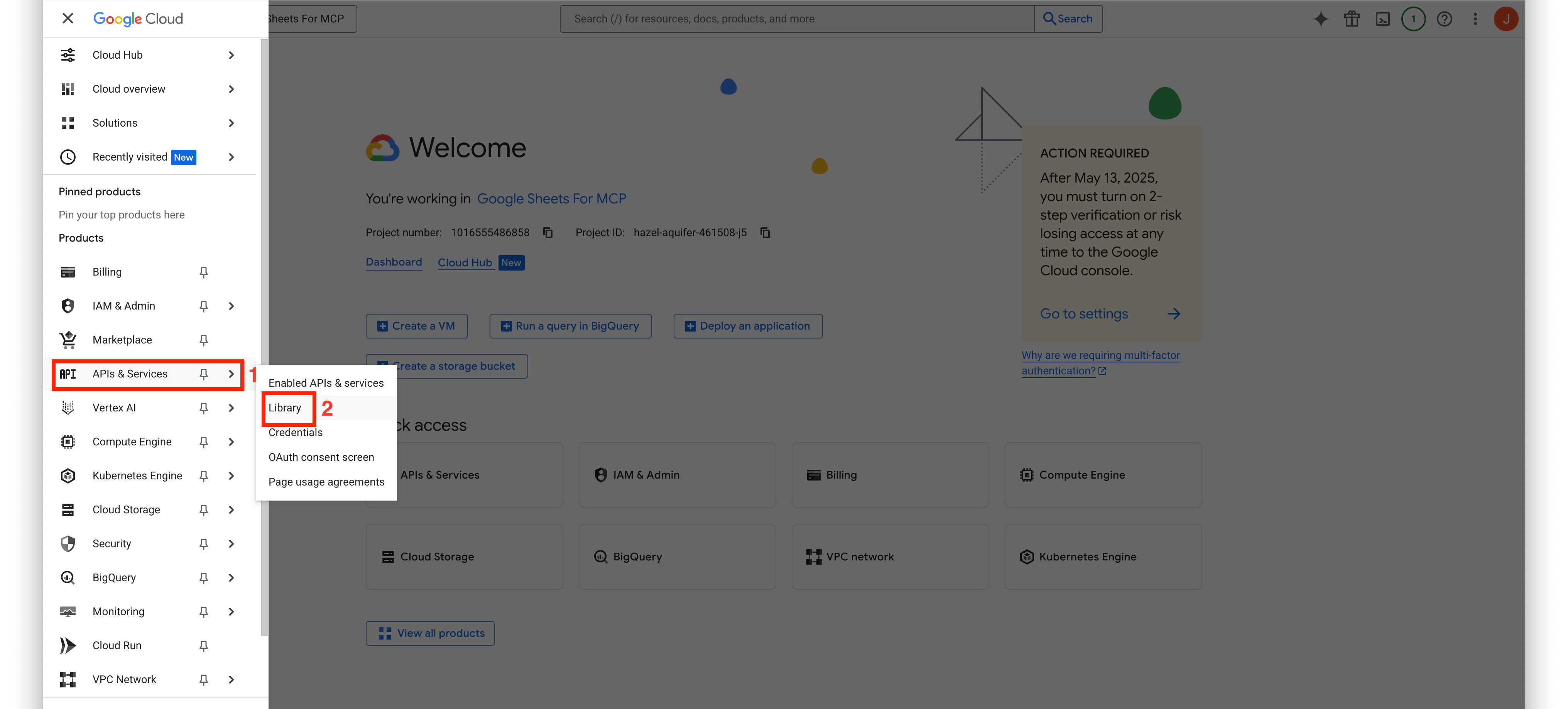
Click Library under APIS & Services.
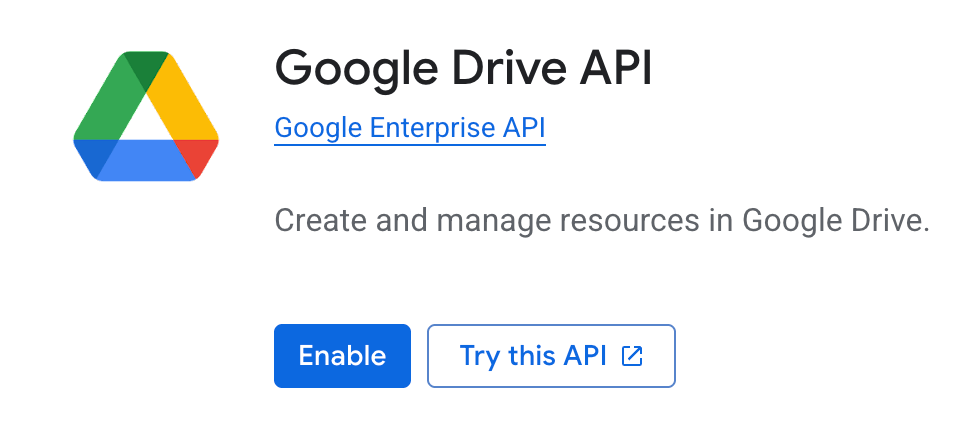
 You can see the services we want to use this time.
| Drive | Sheets |
|---|---|
 |
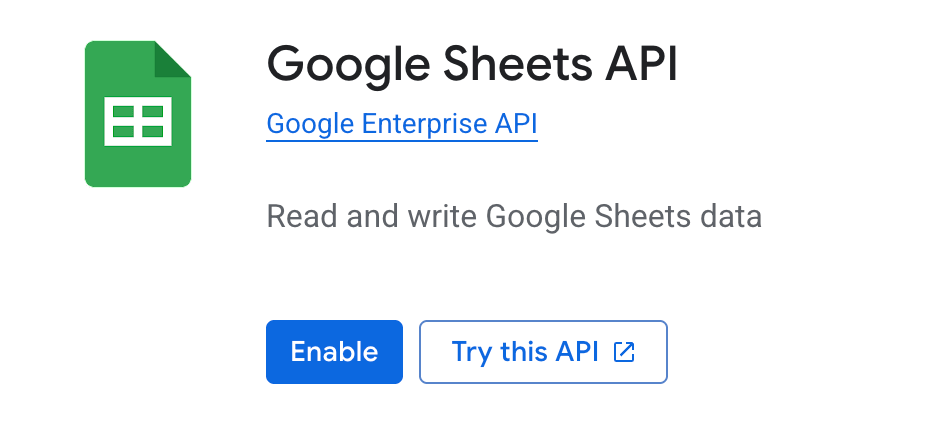 |
Click Enable for the two services.
2-1. Set up Google Drive
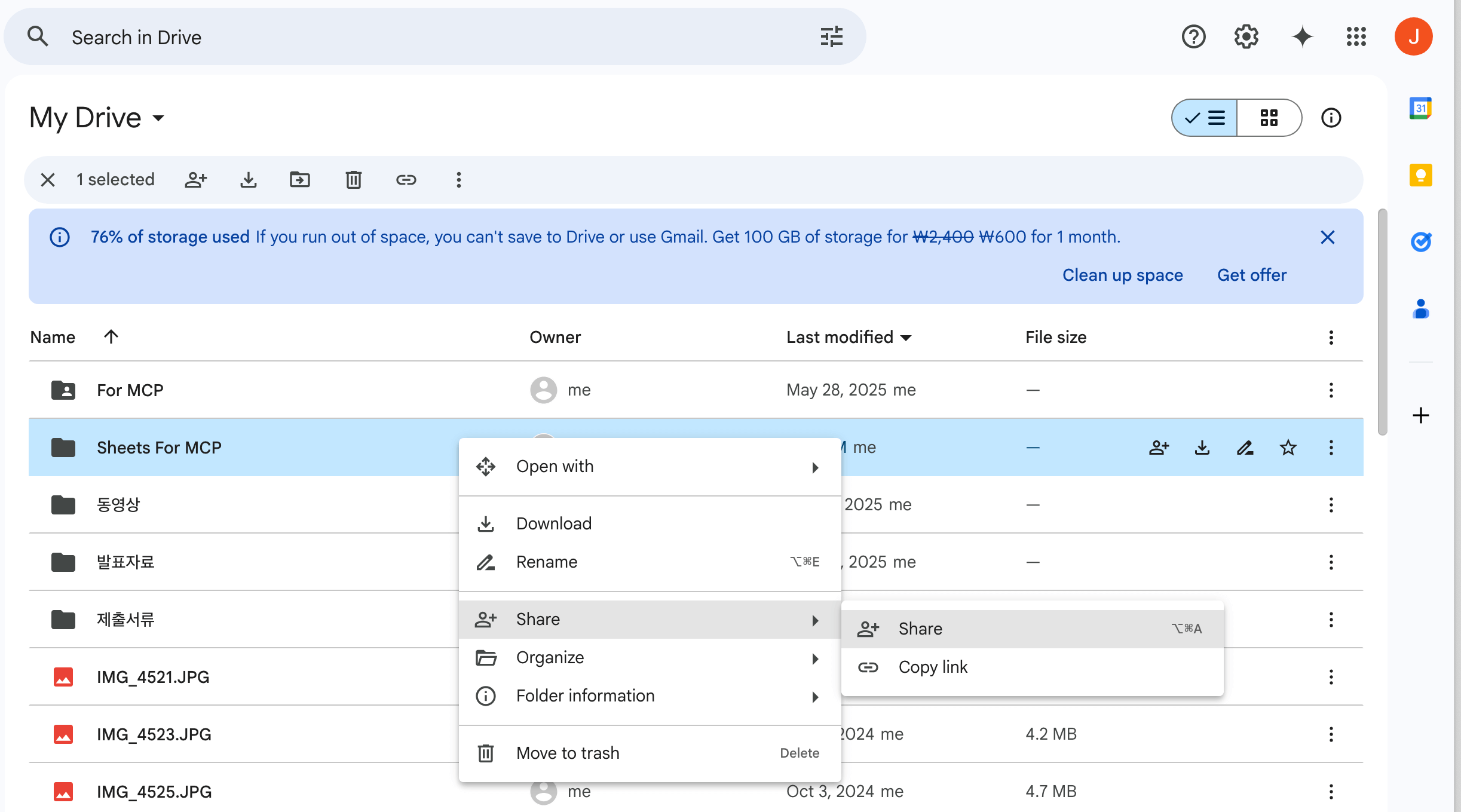 Go into Google Drive and create a folder to use AI. Examples) Created "Sheets For MCP" -> Then click "Share."
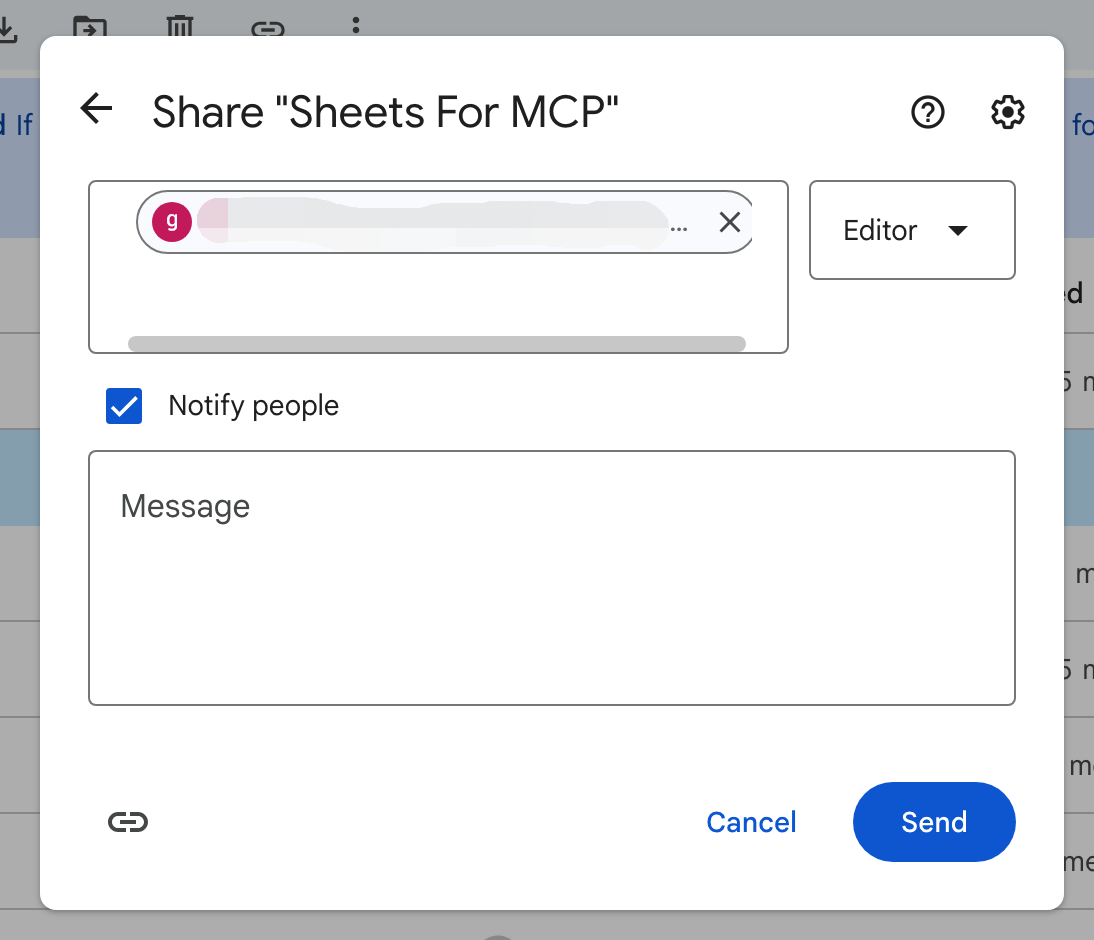 In the top field, copy and paste the client_email from the JSON file made in 1-2. Create a service account.
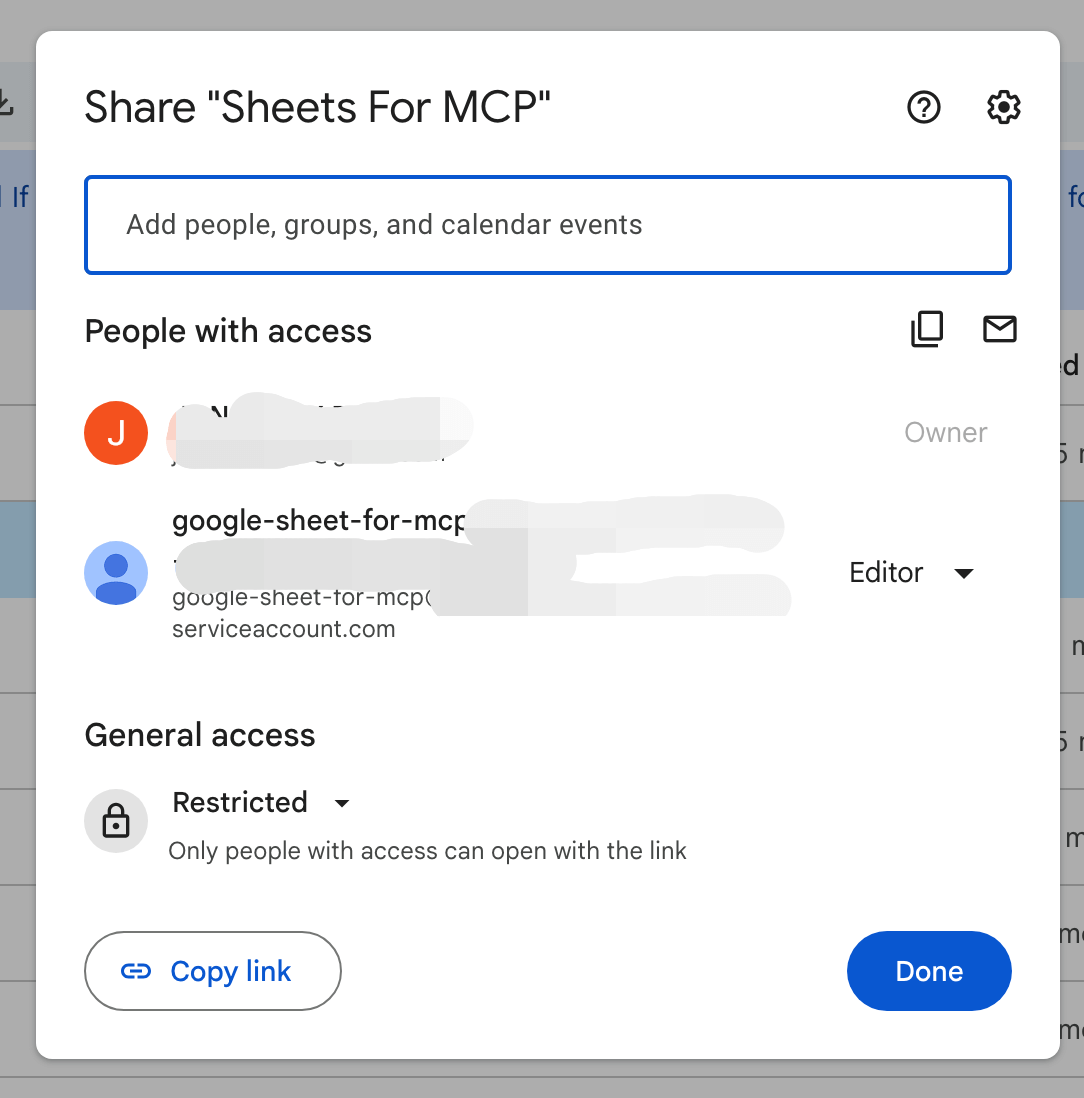
Check that it has been added and click Done.
2-2. Get the Folder ID
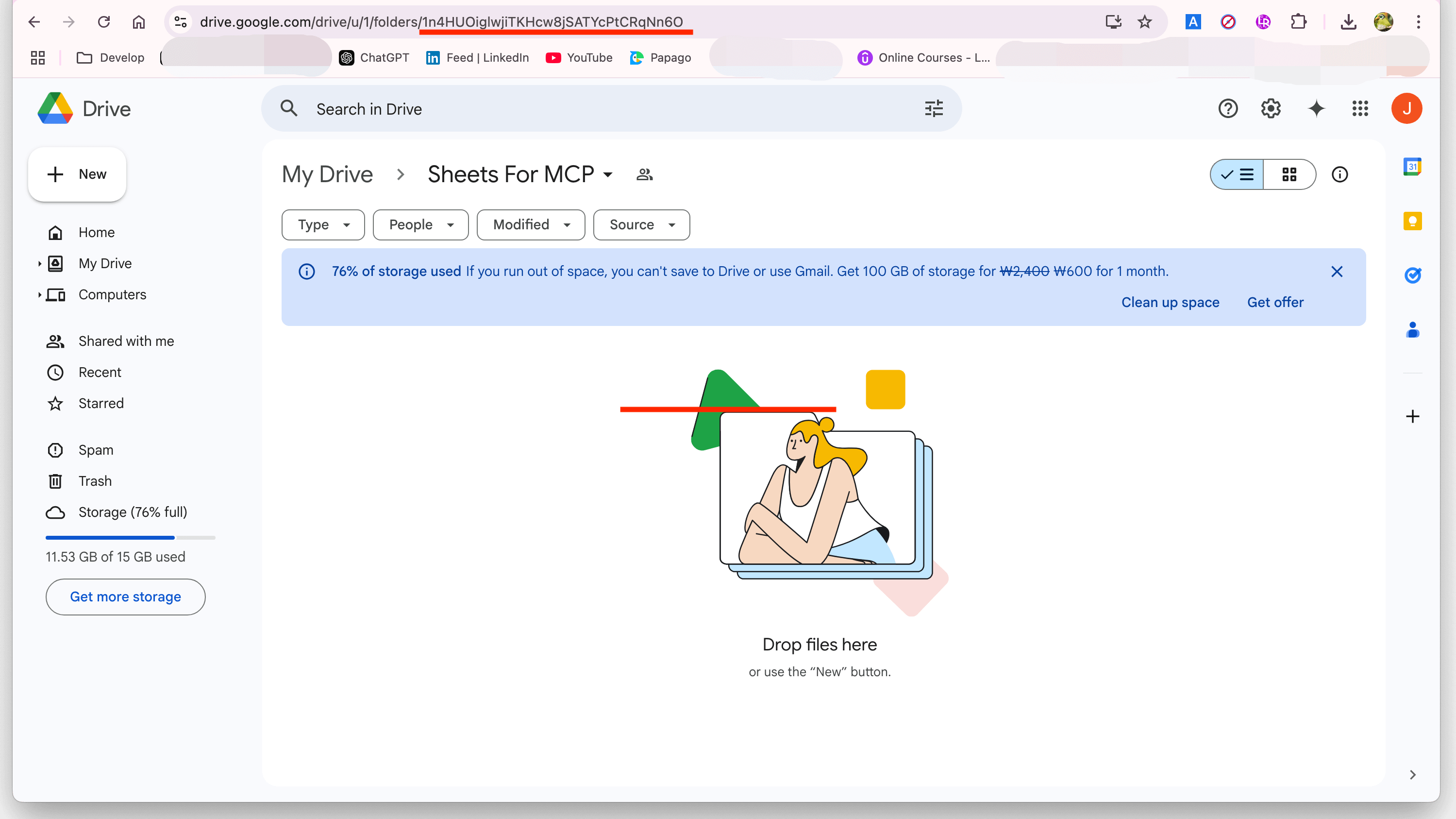 Once the settings are complete, obtain the Folder ID.
Everything you need for the setup is now ready to go. Let's move on to the actual setup and use it!
MCP Setup (Cursor & Terminal)
This can also be done on Windows, but the instructions here are for Mac. There's a way to use a simple cloud server for MCP setup, but this time we'll use LocalServer.
First, we need uv and uvx. Open your terminal and get these installed. uvx appears to be part of uv, a fast Python package installer and resolver.
1. Install uv and uvx & Set Environment Variables
curl -LsSf https://astral.sh/uv/install.sh | sh
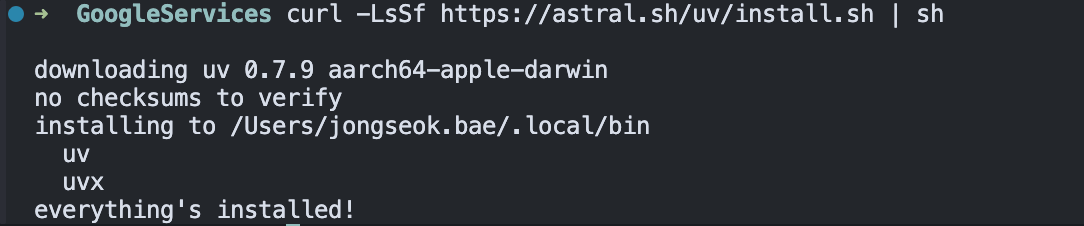 Installation completed successfully.
Enter values according to your environment.
export SERVICE_ACCOUNT_PATH="/path/to/your/service-account-key.json"
export DRIVE_FOLDER_ID="YOUR_DRIVE_FOLDER_ID"
Set the two prepared SERVICE_ACCOUNT_PATH and DRIVER_FOLDER_ID as environment variables.
2. Project Setup
git clone https://github.com/yourusername/mcp-google-sheets.git
cd mcp-google-sheets
Clone the project and move to the cloned directory.
You can place it anywhere you like, but for easier management, I moved the service_account.json file under Project.
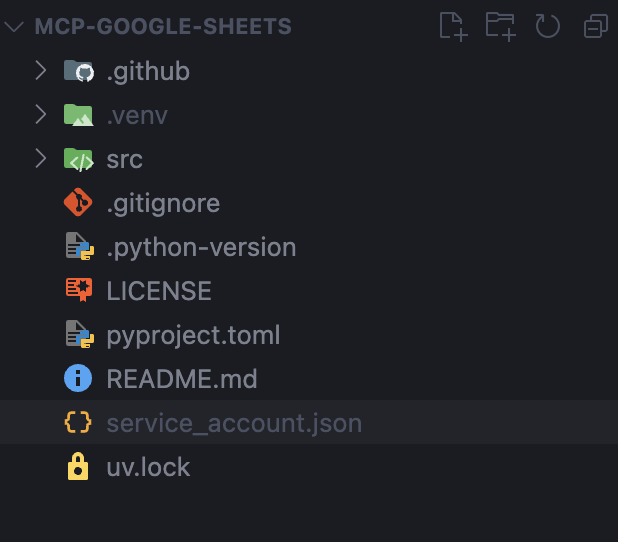
Let's start up the server.
uv run mcp-google-sheets
 The local server is now ready.
Finally, let's configure the MCP for use.
3. MCP Setup
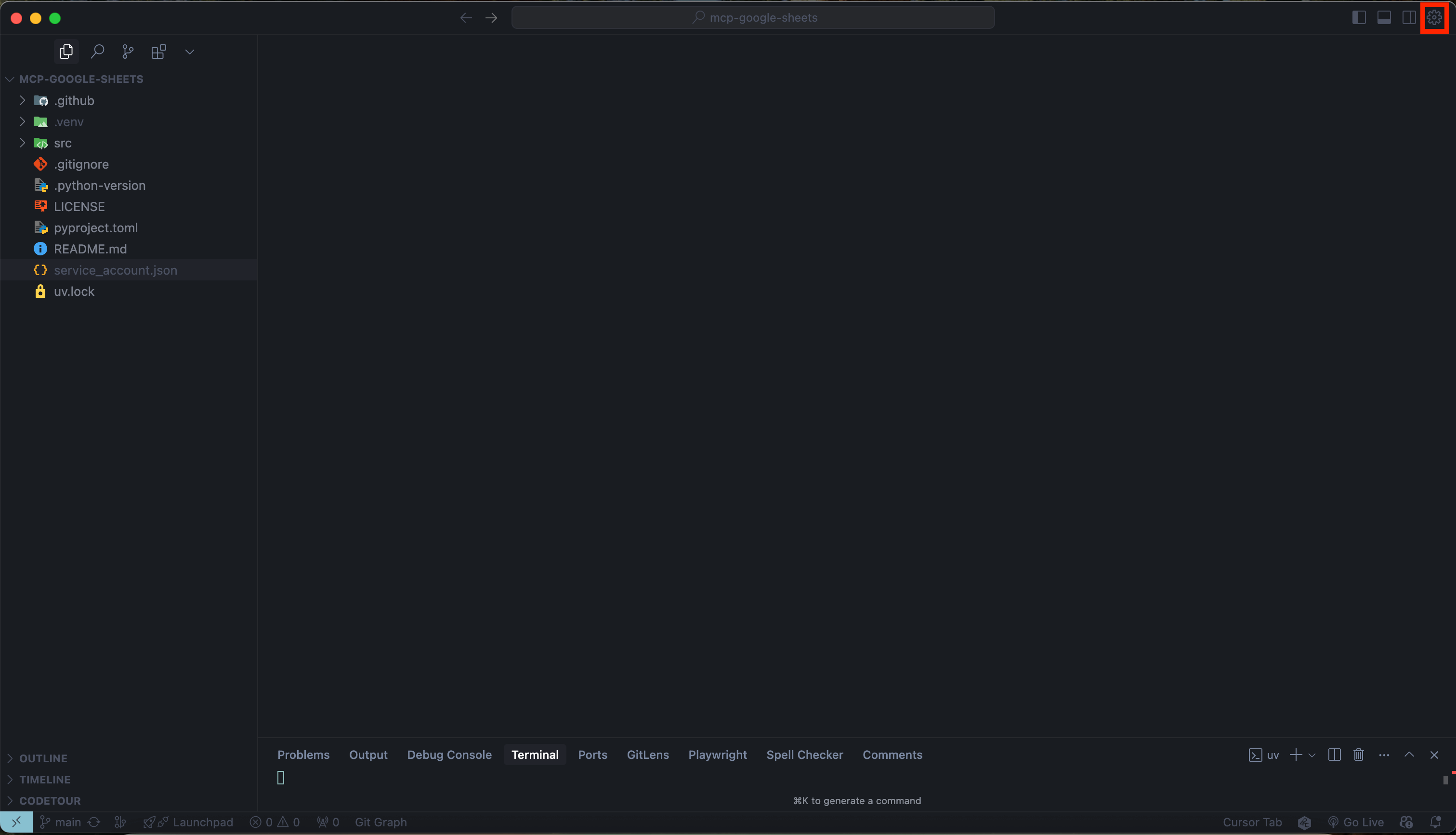 To set up MCP, click the ⚙️ icon in the top right corner.
 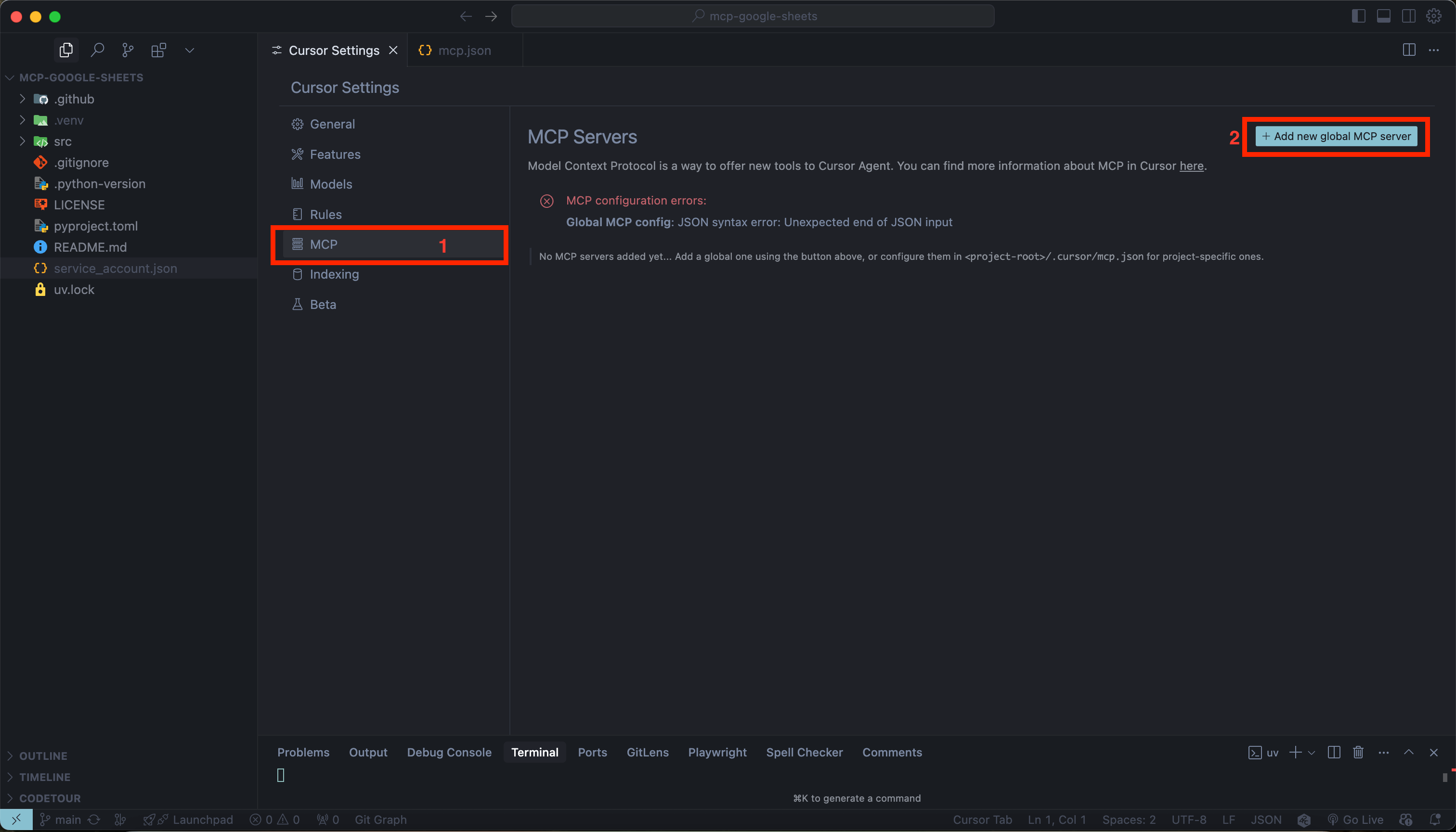 In the MCP section, click + Add new global MCP Server.
 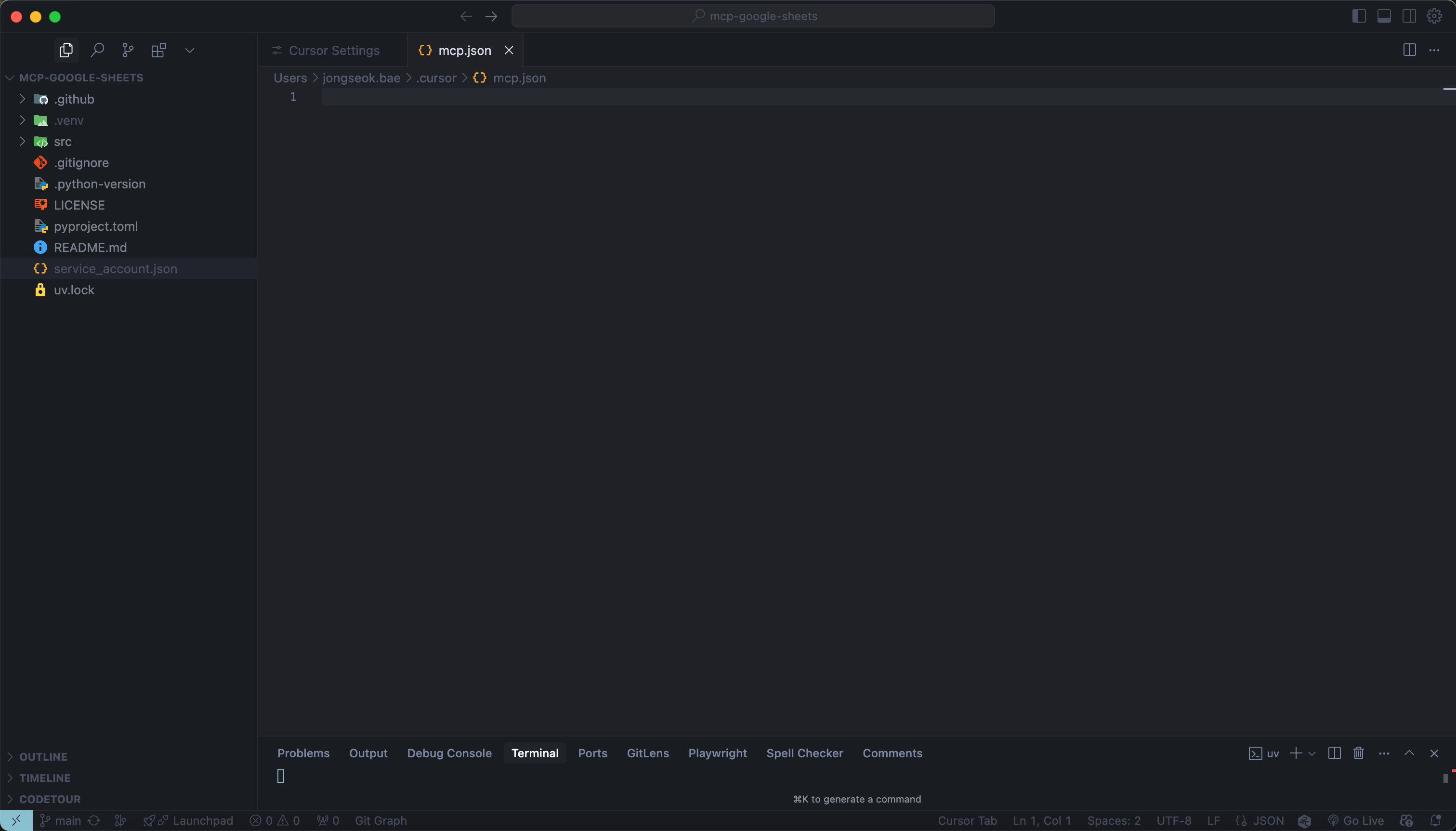 You'll see a input screen.
{
   "mcpServers": {
     "mcp-google-sheets-local": {
       "command": "uv",
       "args": [
         "run",
         "--directory",
         "/Users/jongseok.bae/MCP/GoogleServices/mcp-google-sheets",
         "mcp-google-sheets"
       ],
       "env": {
         "SERVICE_ACCOUNT_PATH": "/Users/jongseok.bae/MCP/GoogleServices/mcp-google-sheets/service_account.json",
         "DRIVE_FOLDER_ID": "1n4HUOiglwjiTKHcw8jSATYcPtCRqNn6O"
      }
    }
  }
}
- In
args, enter the path to your project directory. - In
env, enter SERVICE_ACCOUNT_PATH and DRIVE_FOLDER_ID. Input the above values and save.
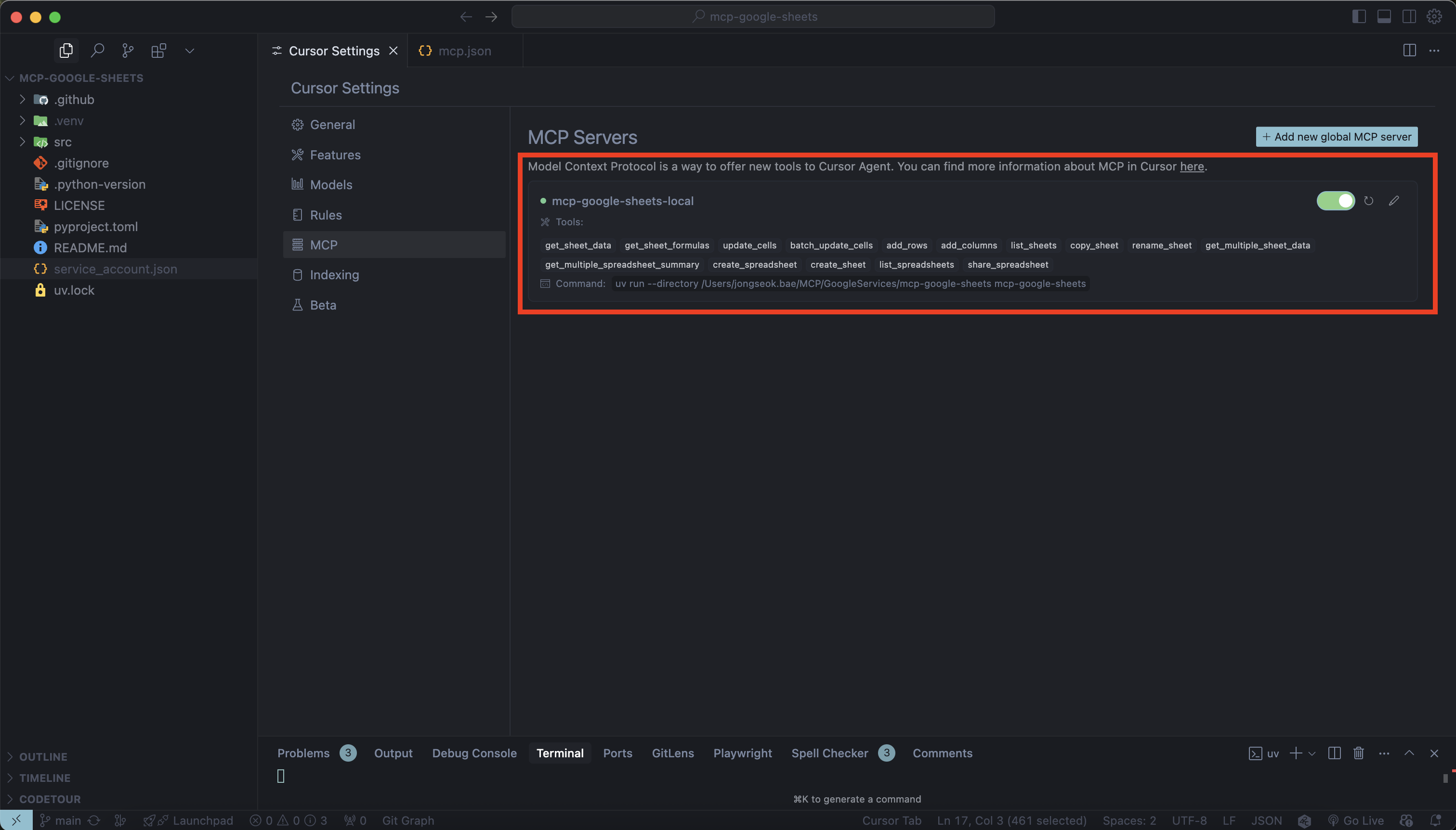 A 🟢 light means you're all set. You should now see a list of available MCP tools like list_spreadsheets, create_spreadsheet, get_sheet_data, etc.
Your setup is now complete. Good job!
Now, let's try giving natural language commands and see how it automatically updates Google Sheets.
Try It Out
Now that we're ready, it's time to put it into action.
For example, simply give a natural language command like:
https://news.google.com/home?hl=en-US&gl=US&ceid=US:en Create a new Google Spreadsheet named Today's Google News.
Organize the top news articles listed into three columns: title, summary, and URL.
In fact, here's what's happening behind the scenes:
- You enter a command in Cursor
- The MCP Server receives the command
- It analyses the natural language and converts it to Google Sheets API
- A spreadsheet is automatically created, and the data is inserted
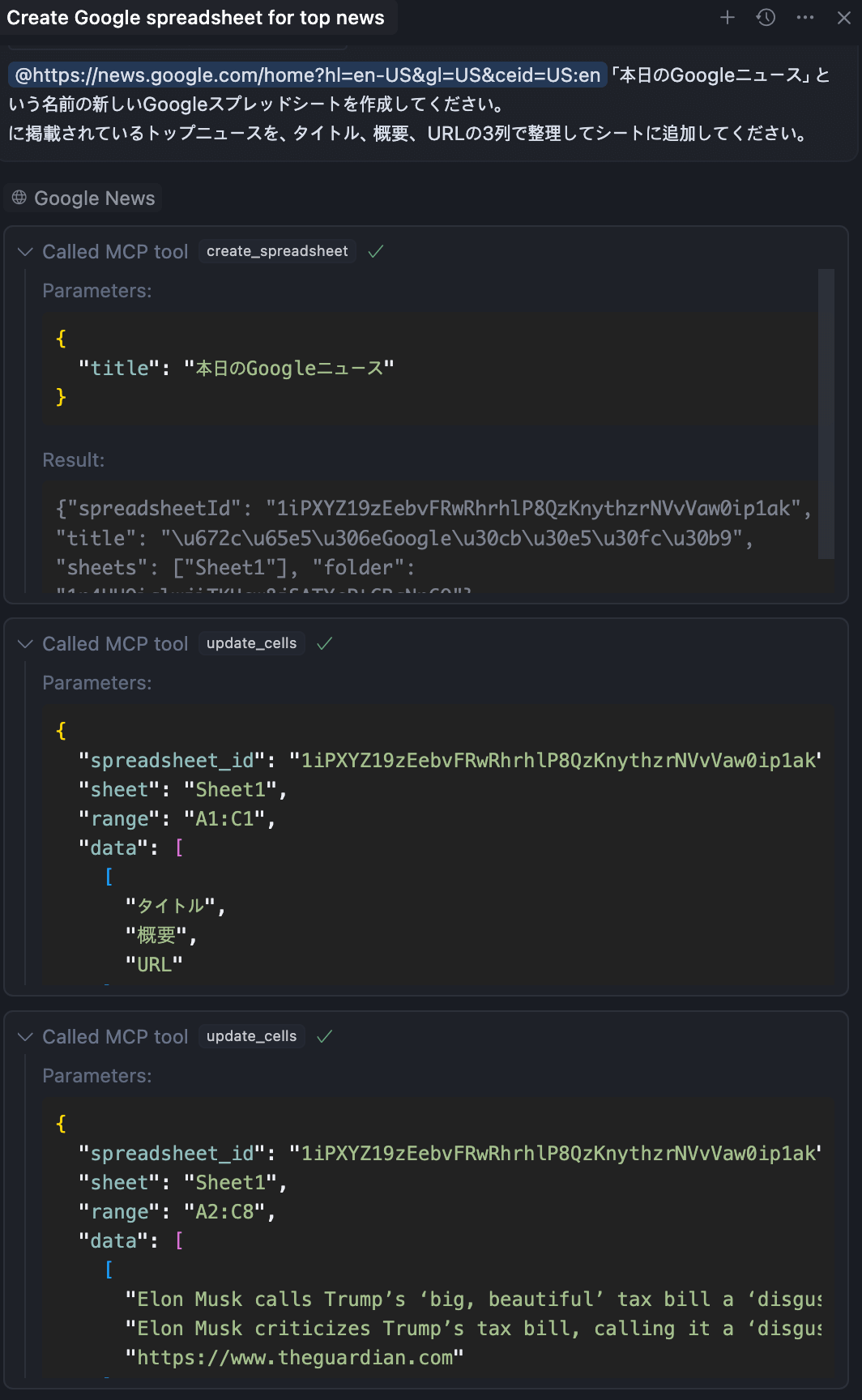 This is what it looks like behind the scenes when MCP runs. (Analyzes the natural language and executes the process)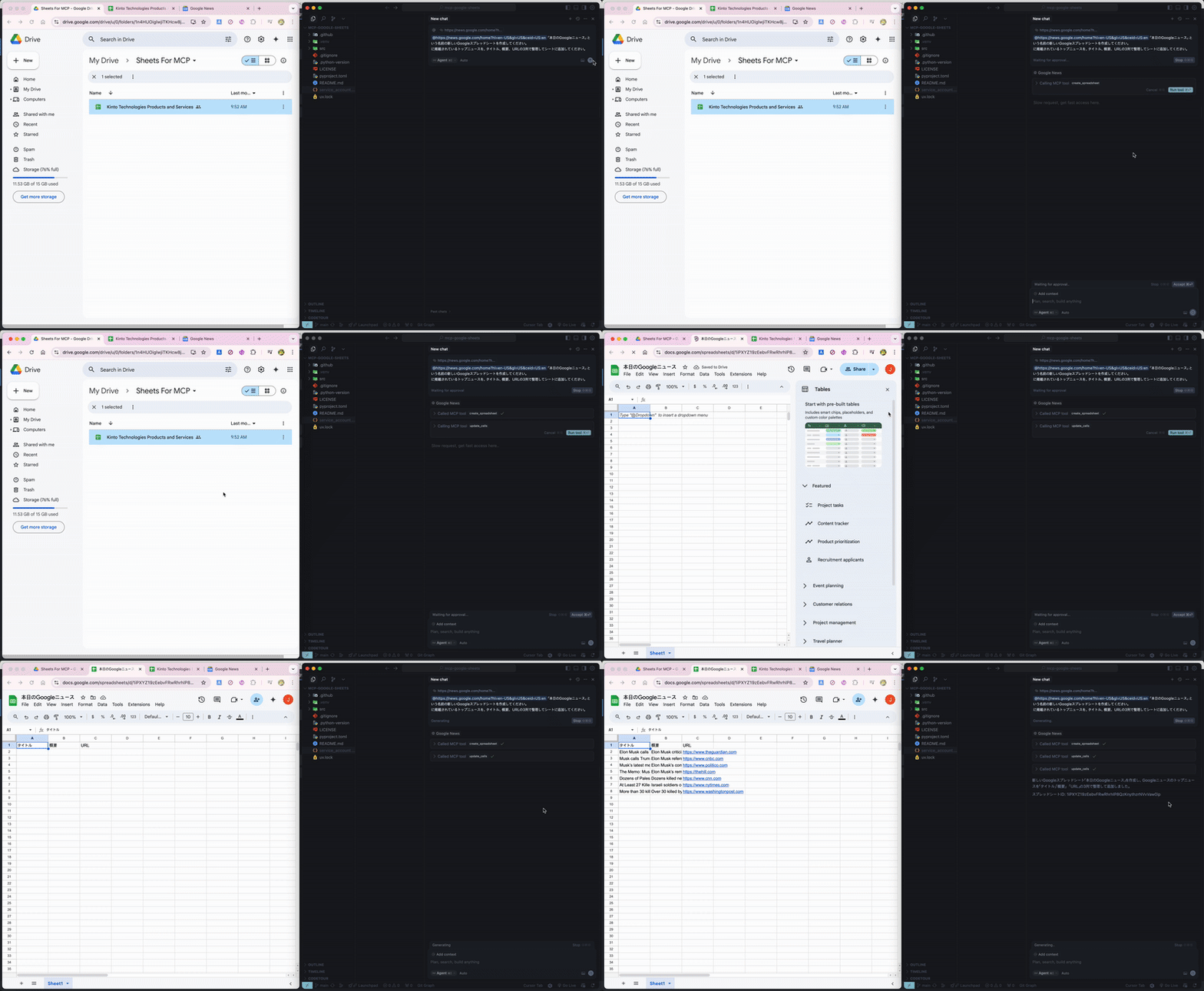
As a result, the spreadsheet described earlier was automatically generated!
Summary
The integration between MCP and Google Sheets isn't just a technical introduction.
The experience of running tasks through a single natural language command
is no longer futuristic, it's fully achievable right now.
Of course, there are still things to consider, such as security and access control.
However, by starting with small automations gave me a strong sense of just how much more efficient work can become.
If you’re thinking about automating your tasks, feel free to use this case study as a reference and give it a try.
You might be surprised how quickly you can start making changes.

関連記事 | Related Posts






We are hiring!
【クラウドセキュリティエンジニア】CNAPP運用×AIセキュリティ。次世代のクラウドセキュリティに挑む(東京・名古屋・大阪・福岡)
AI Agent時代のクラウドセキュリティを、 ゼロから作る。KINTOテクノロジーズのCloud Engineering G/セキュリティチームは、2022年にCCoE(Cloud Center of Excellence)として立ち上がり、わずか2年で専門組織として独立しました。
生成AI・AIエージェントの業務実装(FDE/Deployment Strategist)/AIファーストG/東京・名古屋・大阪・福岡
概要トヨタグループの業務現場に入り込み、生成AI・AIエージェントを「使われ続ける状態」まで届ける仕事です。こうした働き方は近年、Forward Deployed Engineer(FDE)やDeployment Strategist(DS)と呼ばれる動き方に近いポジションで、案件の上流の課題定義から、プロトタイプ構築、経営層への提言までを担います。
Follow Us



KINTOテクノロジーズの最新情報をSNSで発信中!イベント・テックブログ更新情報もお届けします。